
Agency Setup Overview
Who this is for
Agency administrators setting up DORWORKS.
The first training program is included; trainee credits and additional program slots are purchased separately.
In-app setup guide
When you first begin setup, DORWORKS includes a built-in guide visible from the Admin menu:
Admin → Agency setup guide
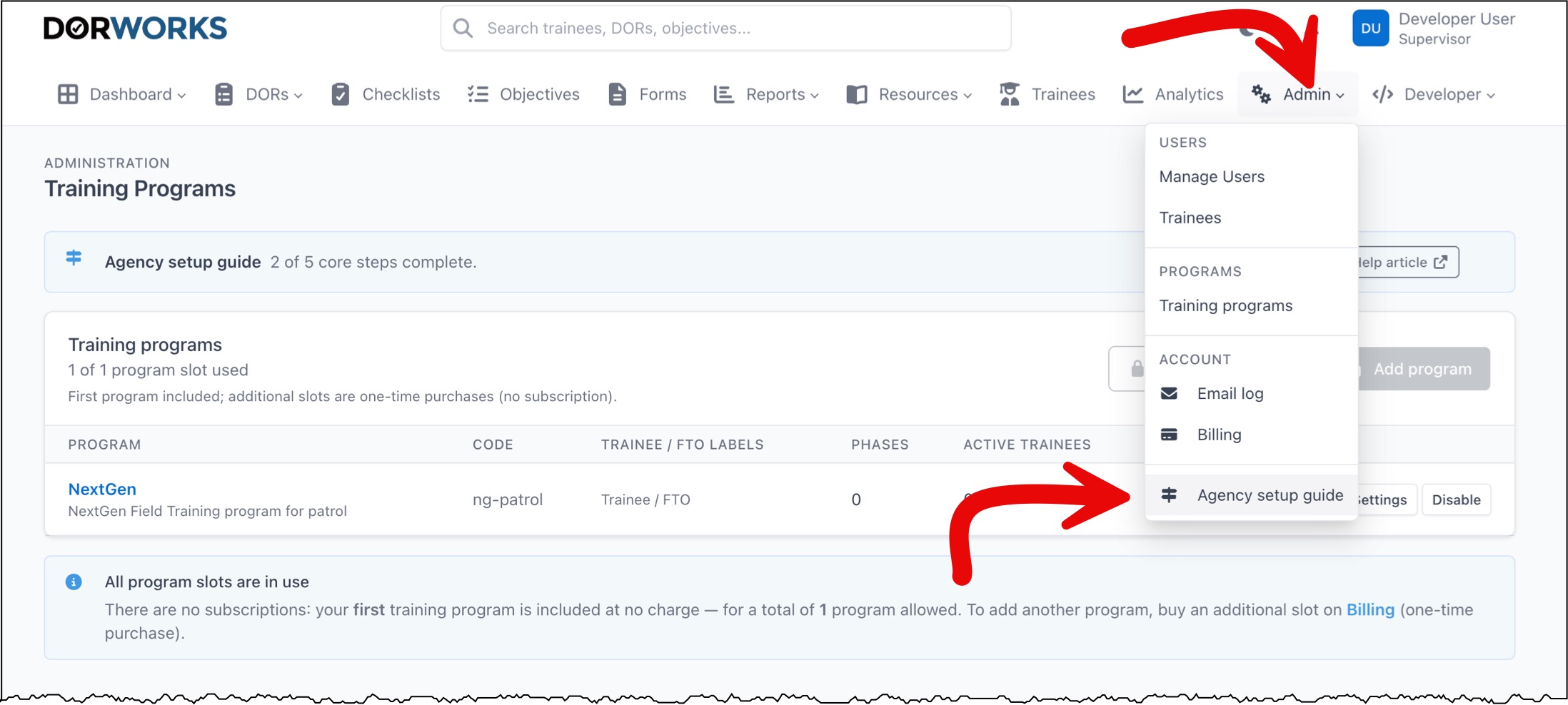
This opens an off-canvas panel with an overview of the setup process.
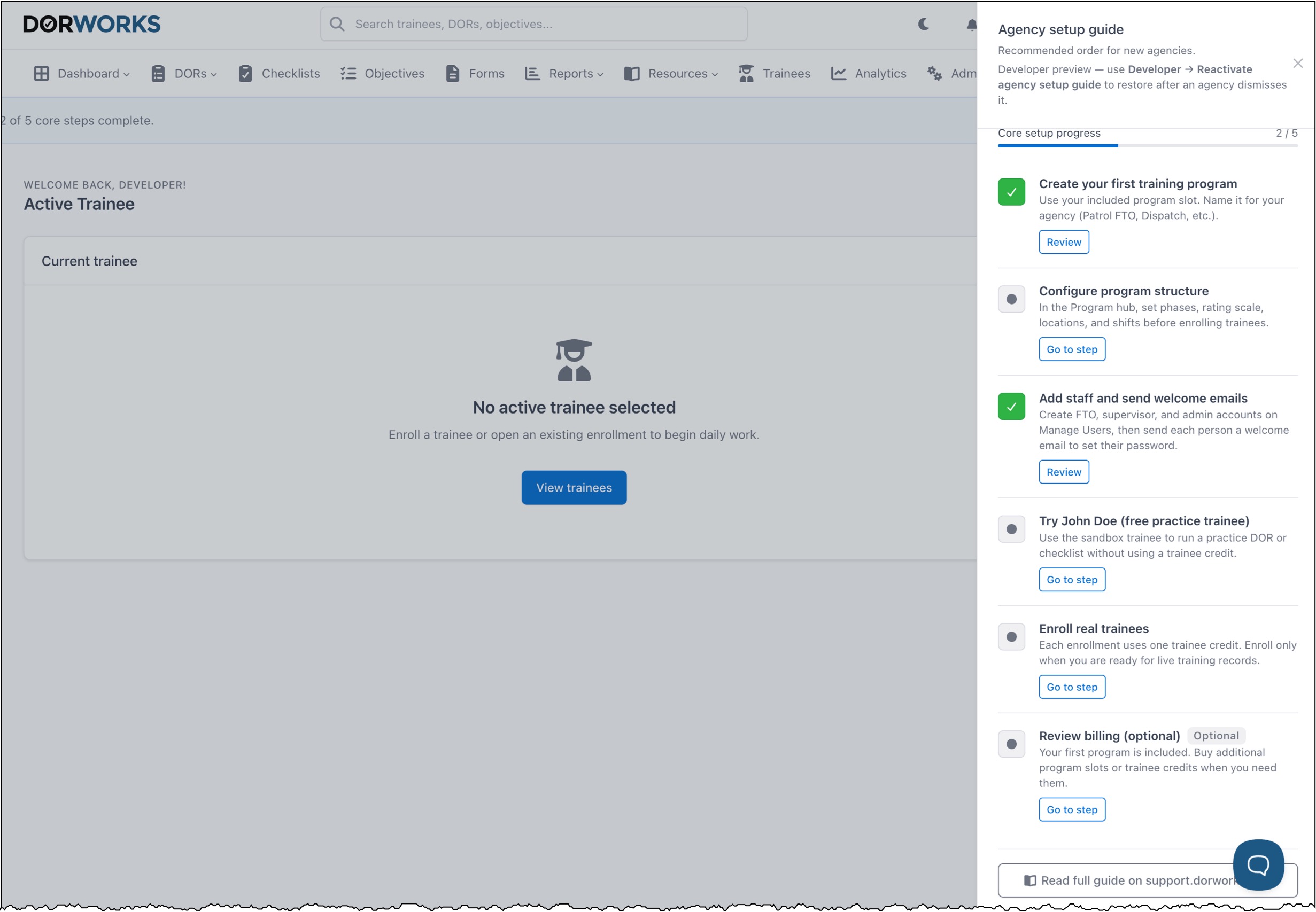
- Mark each step as complete as you proceed.
- You can return to this guide at any time.
- When you are ready to permanently close the guide, at the bottom of the panel click We're done — hide guide for our agency.
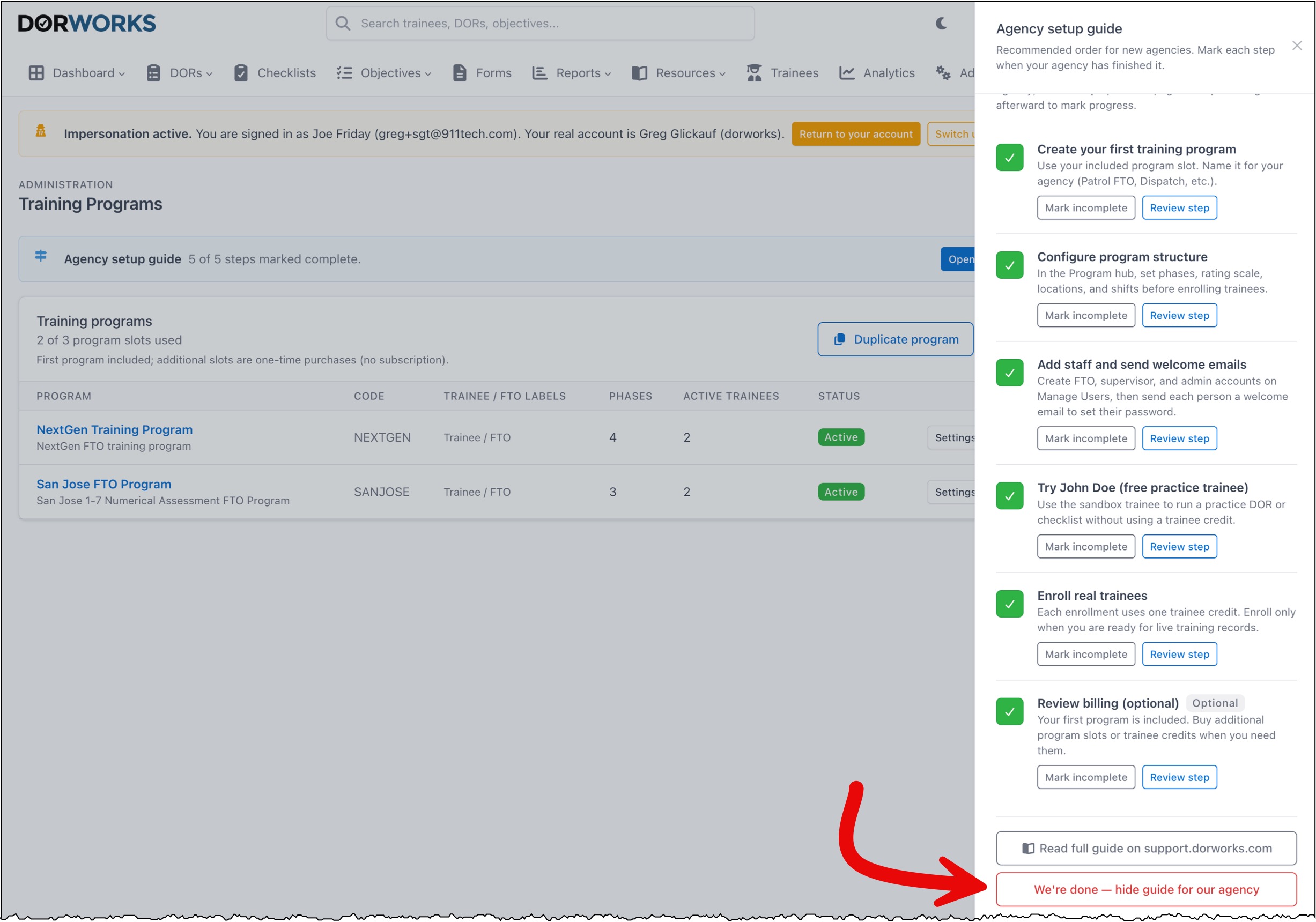
You can also open the guide from Dashboard or Training programs via the setup guide banner or link.
Recommended setup order
- Create your first training program
- Configure the program
- Add staff
1. Create / manage your first training program
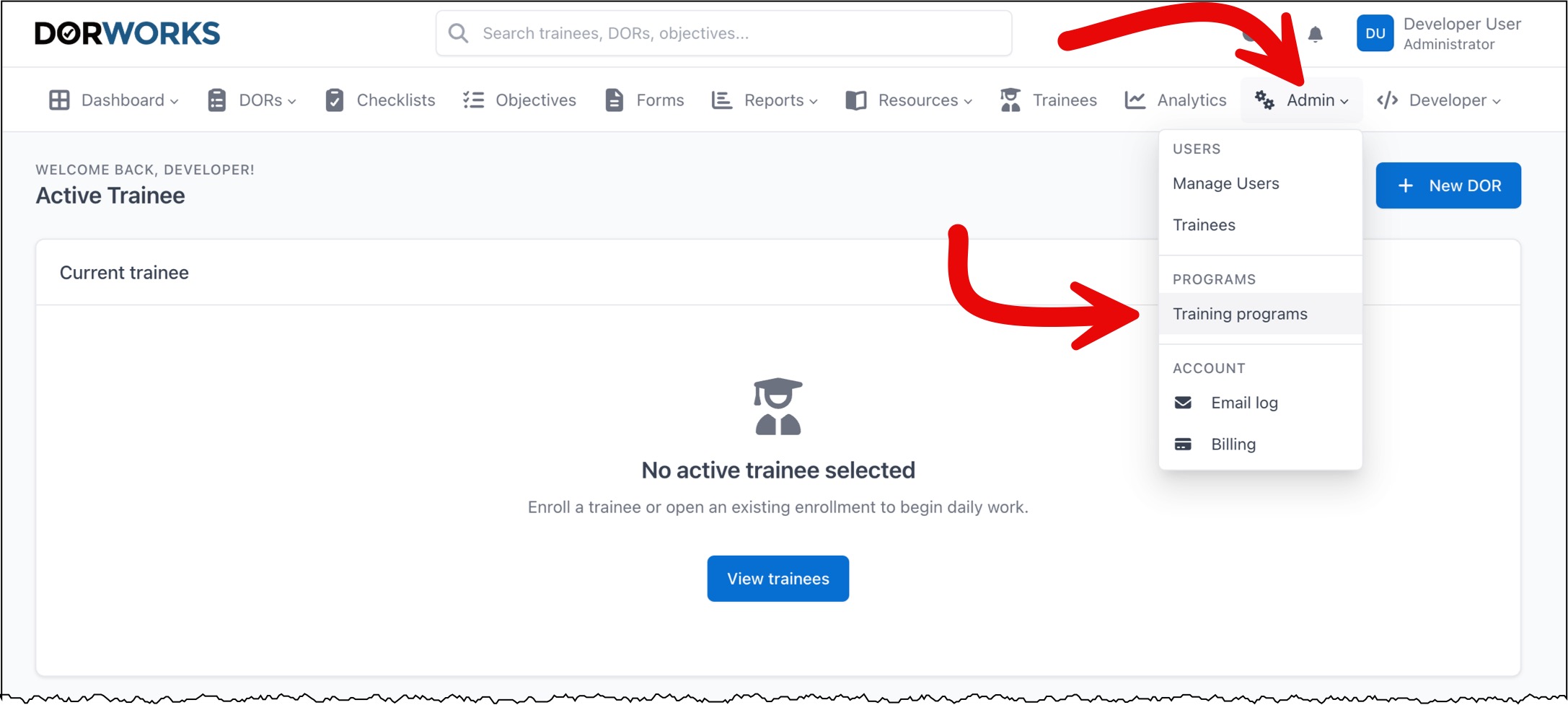
Go to Admin → Training programs → Add program.
- Recommended for many agencies: Import setup → tab DORWORKS templates — pick a starter program, enter your program name, and import. See the admin article Importing and duplicating program setup for templates, ZIP upload, and duplicate.
- Or click Add program to start blank and configure each tab manually.
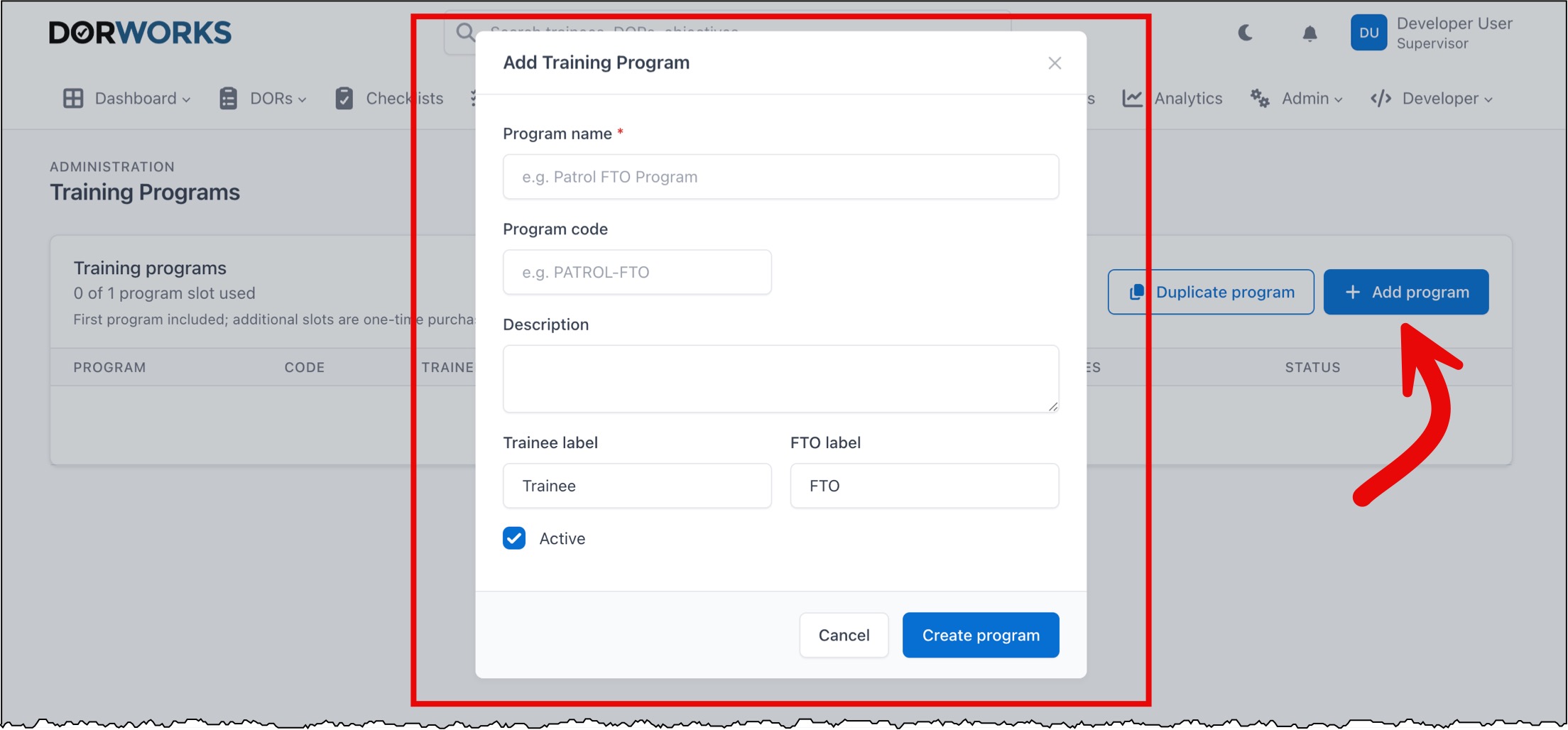
- Uses one program slot (first included).
- Name the program for your agency (e.g. Patrol FTO, Dispatch training).
- Set trainee and FTO labels if your agency uses different terms.
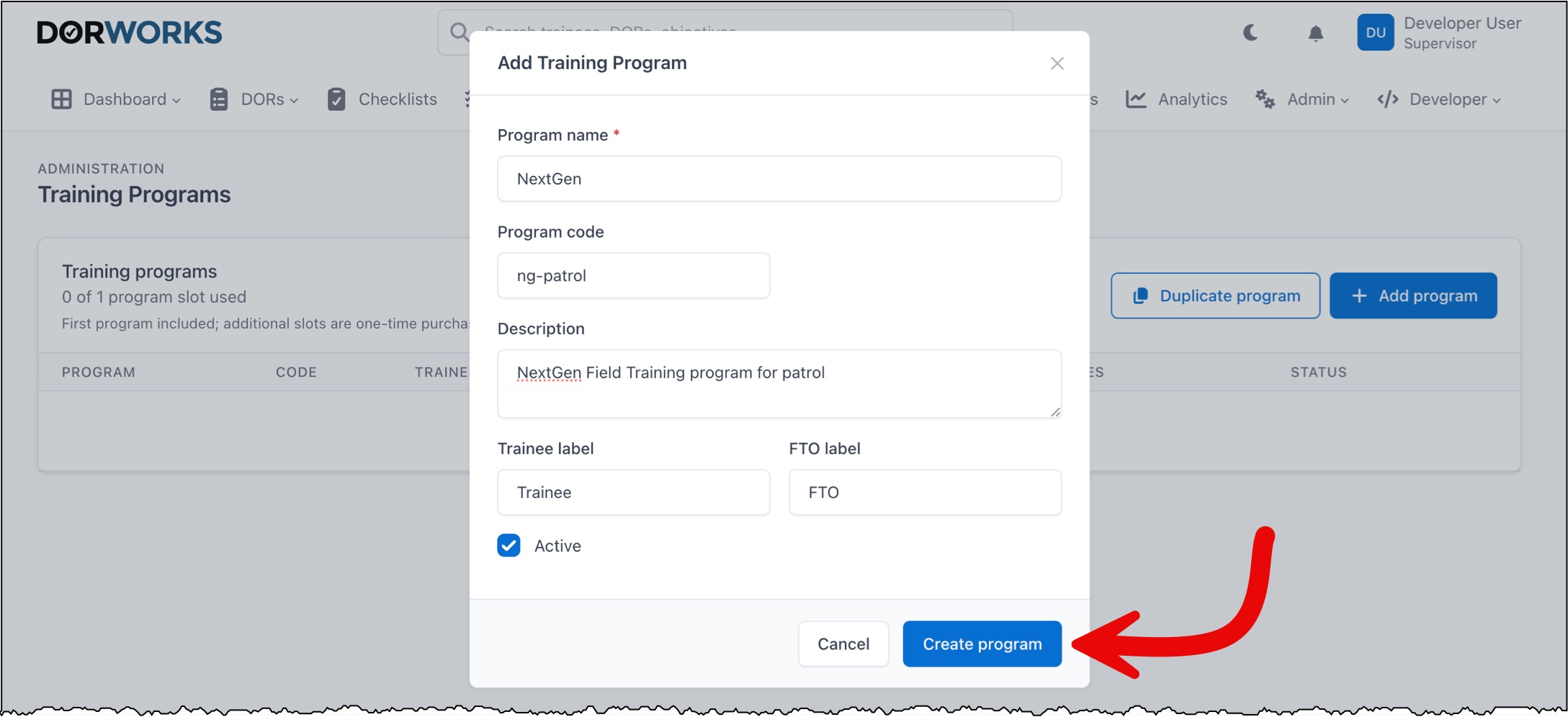
2. Configure the program structure
After you create a program, the screen refreshes and you land on the configuration page for that program.
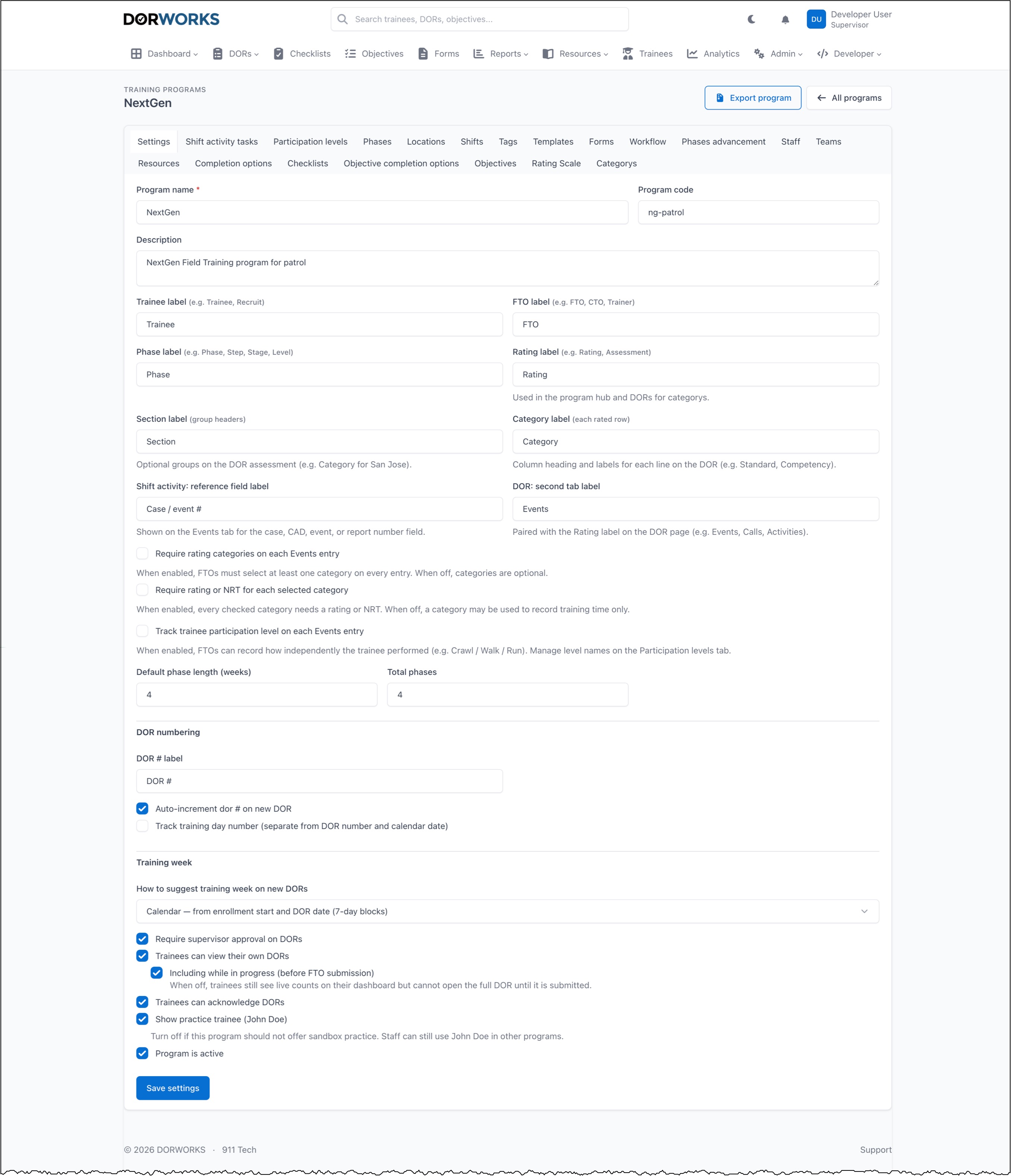
Alternatively, from Training programs, click the program name or Settings.
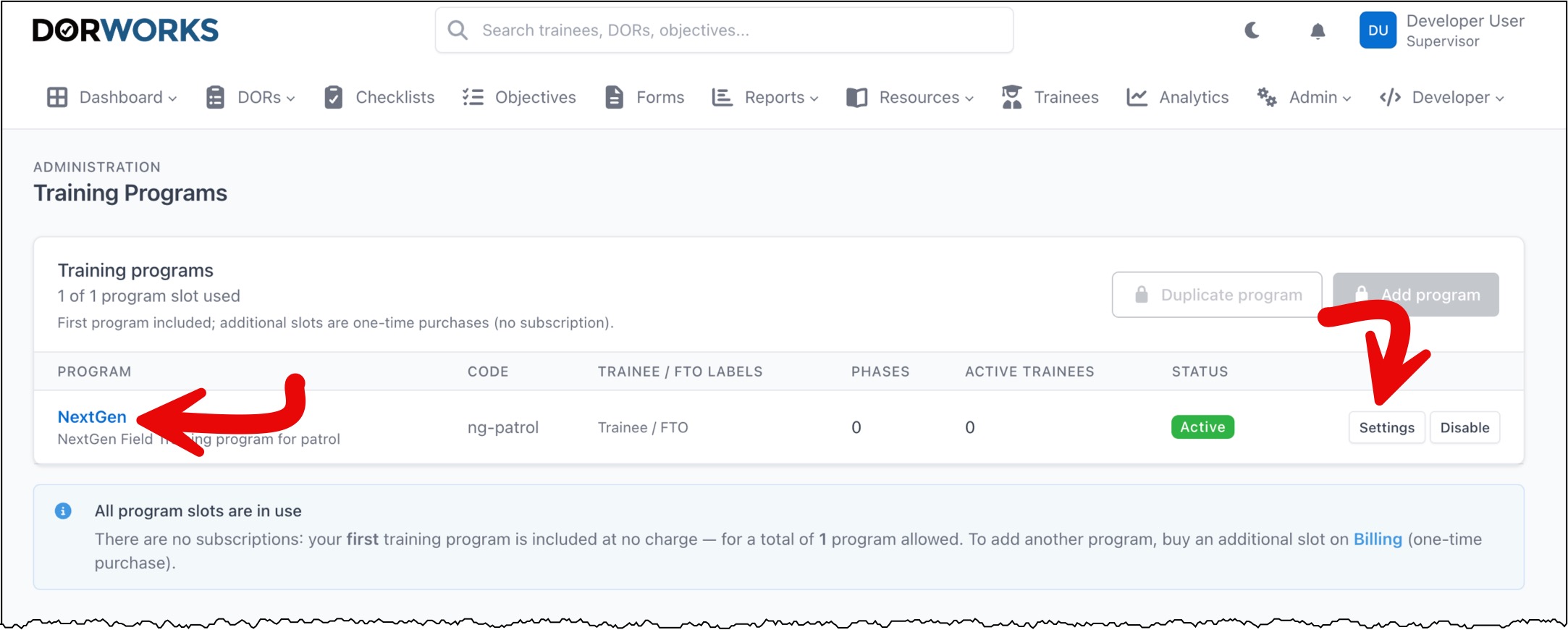
Training program settings (Program hub)
The main settings are broken down into tabs. Walk through each tab and confirm the settings meet your agency's needs before live training begins.
Settings tab
The first settings are pre-populated with default values. Many agencies leave the defaults in place; you may change any value to fit your program.
- Program name — set when you created the program
- Program code — set when you created the program
- Description — set when you created the program
- Trainee label — e.g. Trainee, Recruit
- FTO label — e.g. FTO, CTO, Trainer
- Phase label — e.g. Phase, Step, Stage, Level
- Rating label — e.g. Rating, Assessment; used in the program hub and on DORs for categories
- Section label (group headers) — optional groups on the DOR assessment (e.g. Category for San Jose)
- Category label (each rated row) — column heading and labels for each line on the DOR (e.g. Standard, Competency)
- Shift activity: reference field label — shown on the Events tab for the case, CAD, event, or report number field
- DOR: second tab label — paired with the rating label on the DOR page (e.g. Events, Calls, Activities)
- Require rating categories on each Events entry — when enabled, FTOs must select at least one category on every entry; when off, categories are optional
- Require rating or NRT for each selected category — when enabled, every checked category needs a rating or NRT; when off, a category may record training time only
- Track trainee participation level on each Events entry (NextGen) — when enabled, FTOs can record how independently the trainee performed (e.g. Crawl / Walk / Run); manage level names on the Participation levels tab
- Default phase length (weeks) — a guide only; set a value that fits your agency
- Total phases — how many phases (steps) your field training program uses
- DOR numbering (DOR # label) — what you call DOR numbers; default is DOR#
- Auto-increment DOR# on new DOR — normally enabled
- Track training day number (separate from DOR number and calendar date) — enable if your agency tracks a DOR day number
- Auto-increment day number on new DOR — normally enabled when you track day numbers
- Training week — how to suggest training week on new DORs — Calendar (from enrollment start and DOR date, 7-day blocks) or DOR count (advance every N DORs for the trainee)
- DORs per training week — default is 3 (used with DOR count mode)
- Require supervisor approval on DORs
- Trainees can view their open DORs
- Including while in progress (before FTO submission) — when off, trainees still see live counts on their dashboard but cannot open the full DOR until it is submitted
- Trainees can acknowledge DORs
- Show practice trainee (John Doe) — normally left on during setup and training
- Program is active — normally left on
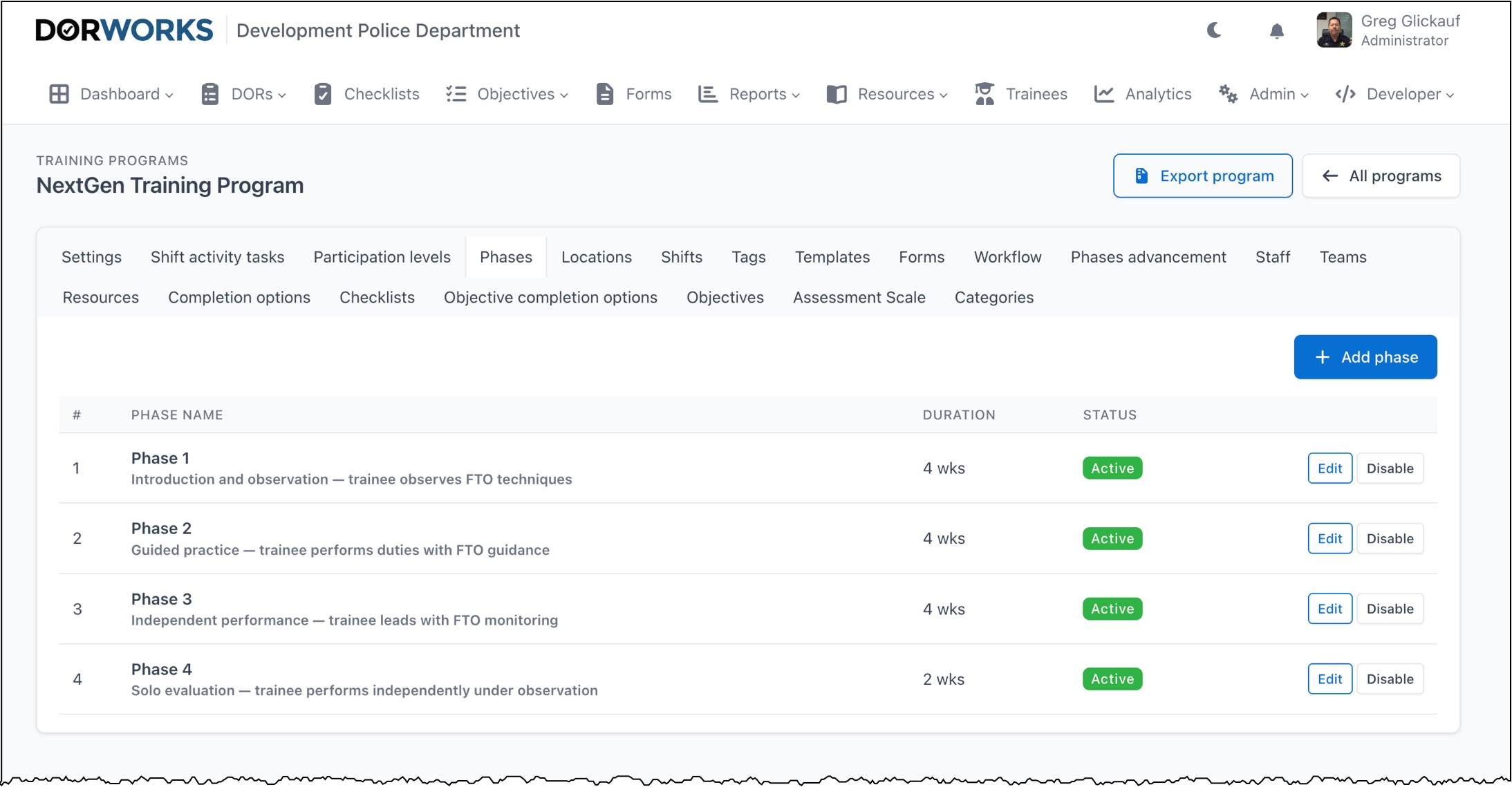
Phases tab
Add or modify training phases (steps) and durations.
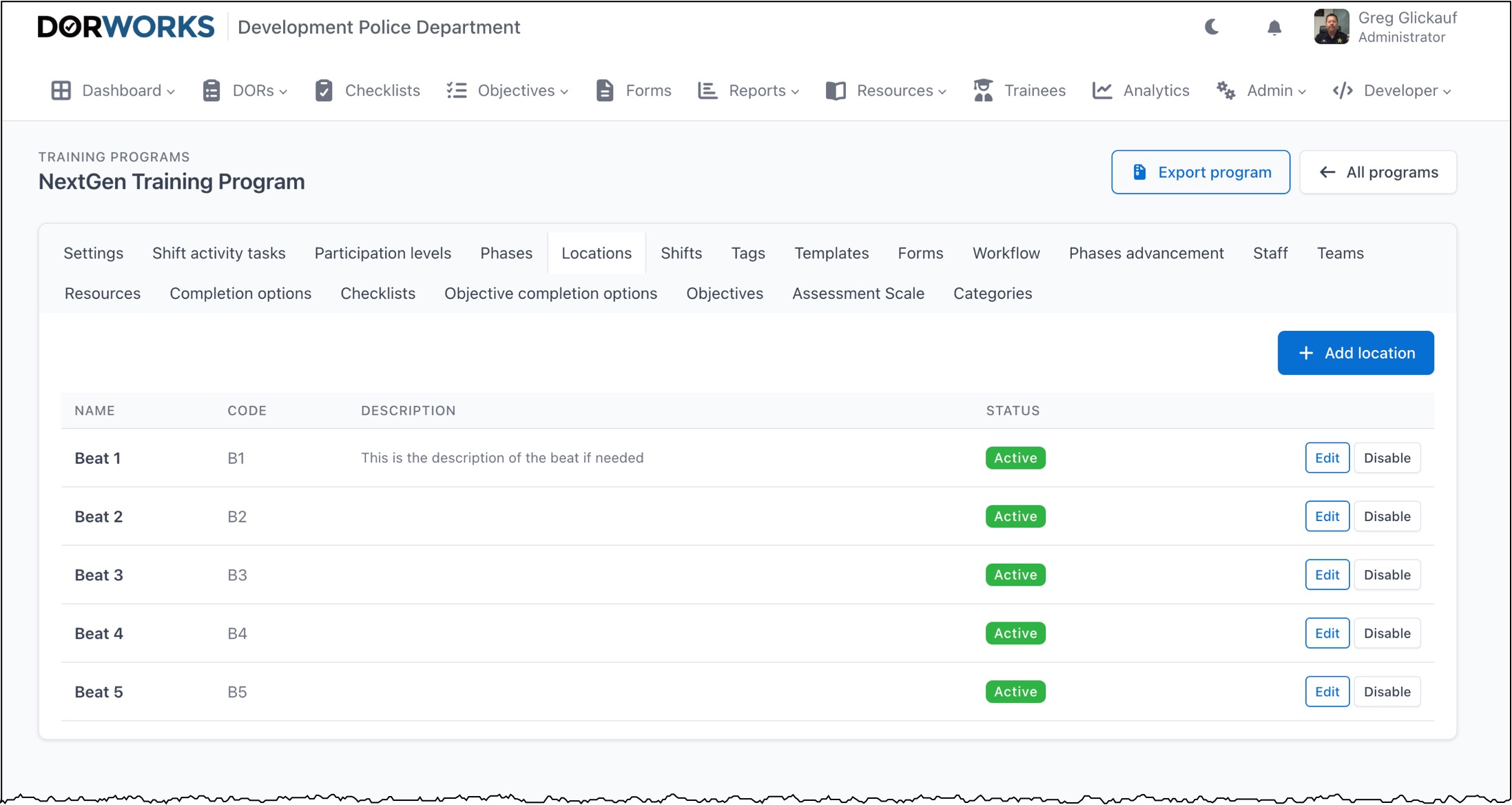
Locations tab
Add or modify beats, districts, zones, areas, and similar (e.g. Zone 1, District 25). For corrections or dispatch programs, add locations such as phones, radio, commissary, or intake.
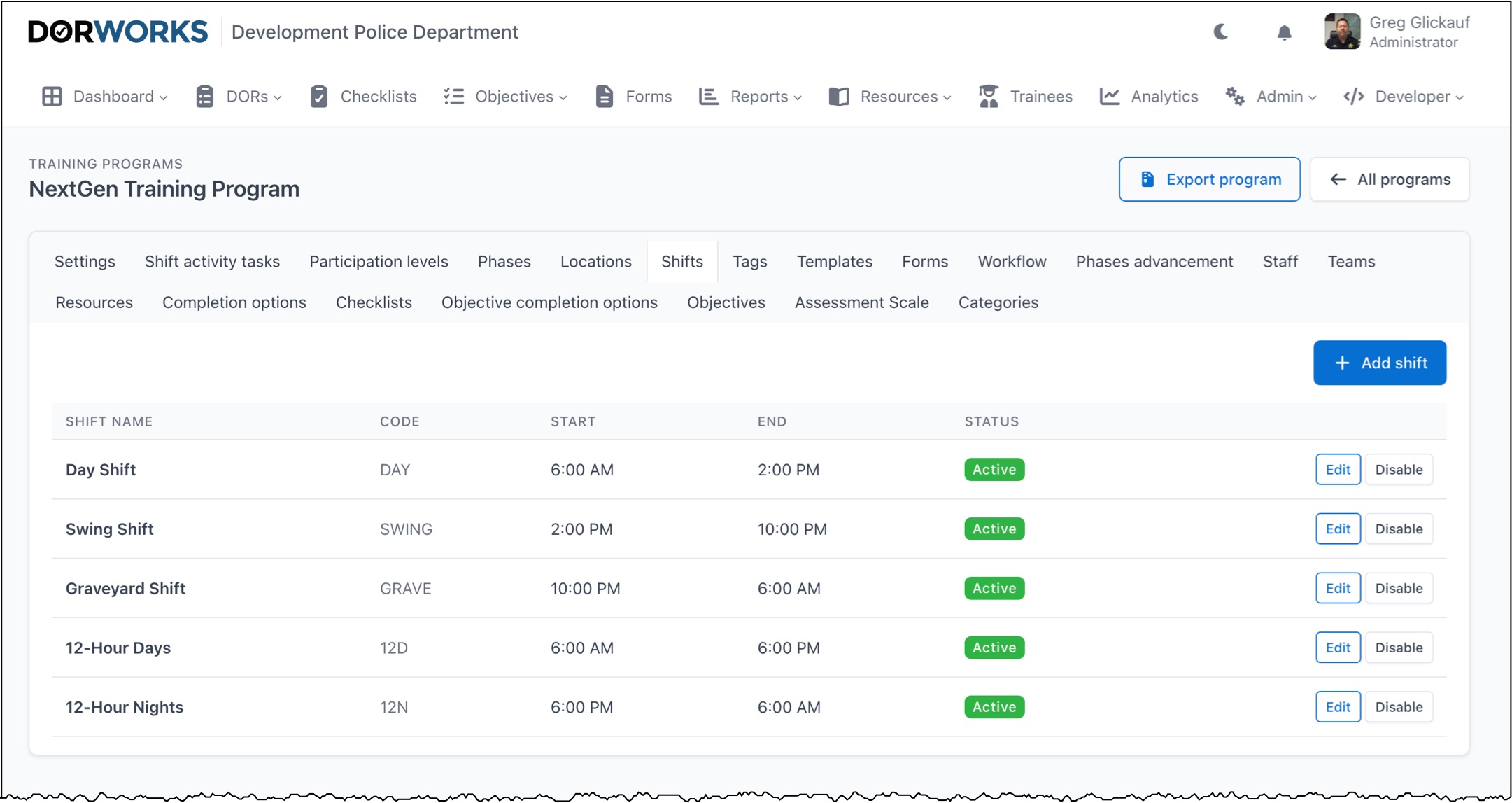
Shifts tab
Add or modify your agency's shifts.
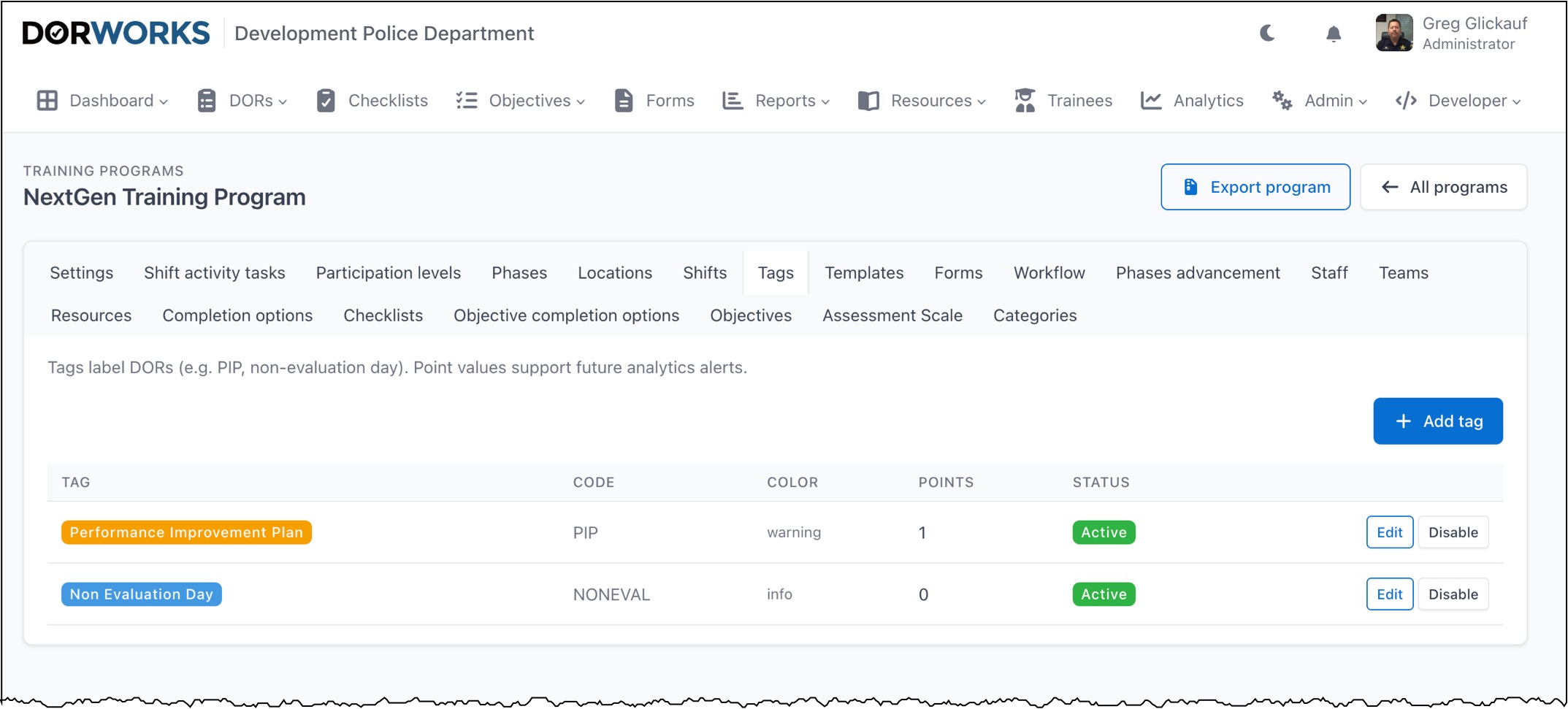
Tags tab
DORs can have tags — essentially flags on a DOR. We strongly recommend keeping the default tags; you may add tags to meet your needs.
Templates tab (for the agency)
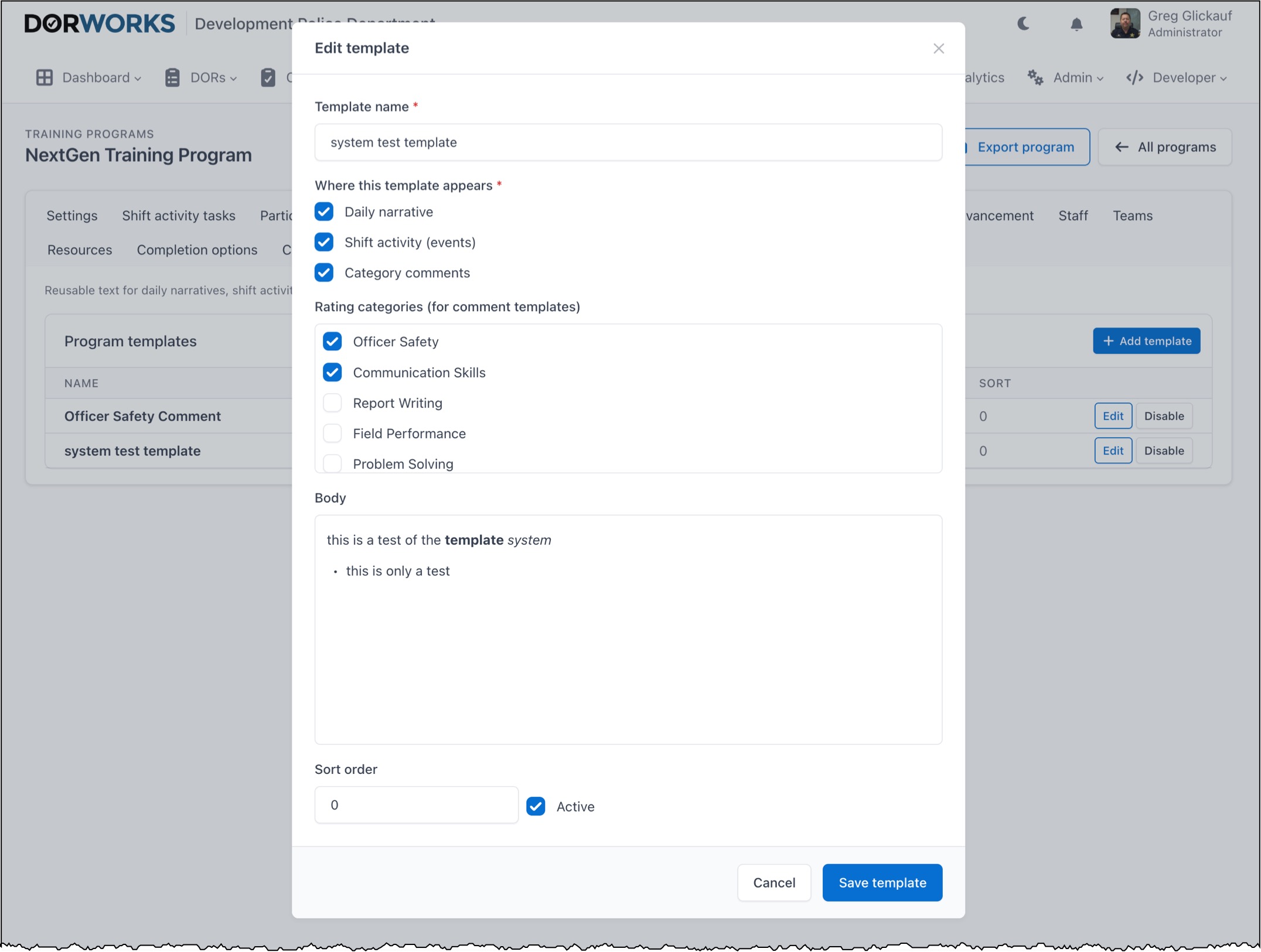
Templates are predetermined text snippets FTOs can insert in narrative fields. Many agencies use templates to ensure required information is captured.
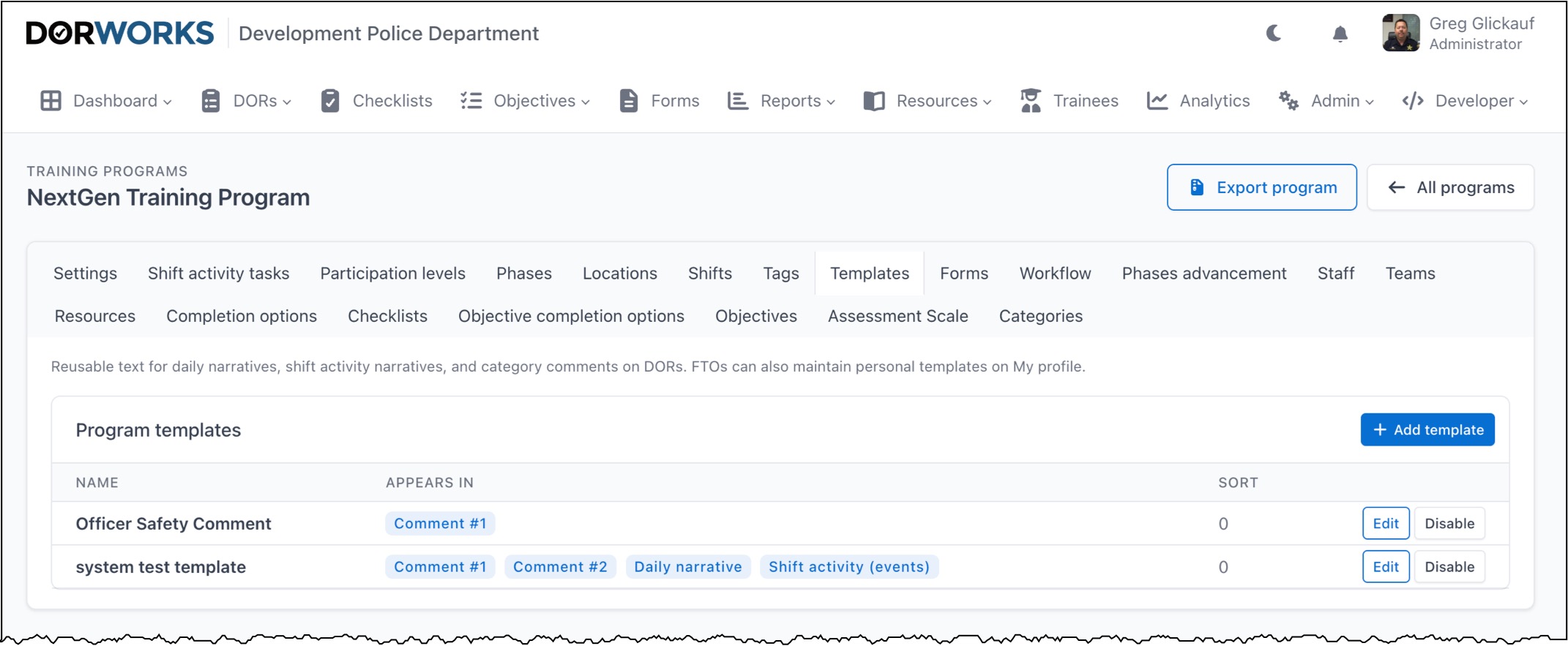
When adding or editing a template, check the boxes that control where it appears. Agency templates are available to everyone; each employee may also maintain personal templates under their account.
Forms tab
Forms document progress status, phase transitions, completions, updates, or other agency processes. The purpose field determines which workflow applies.
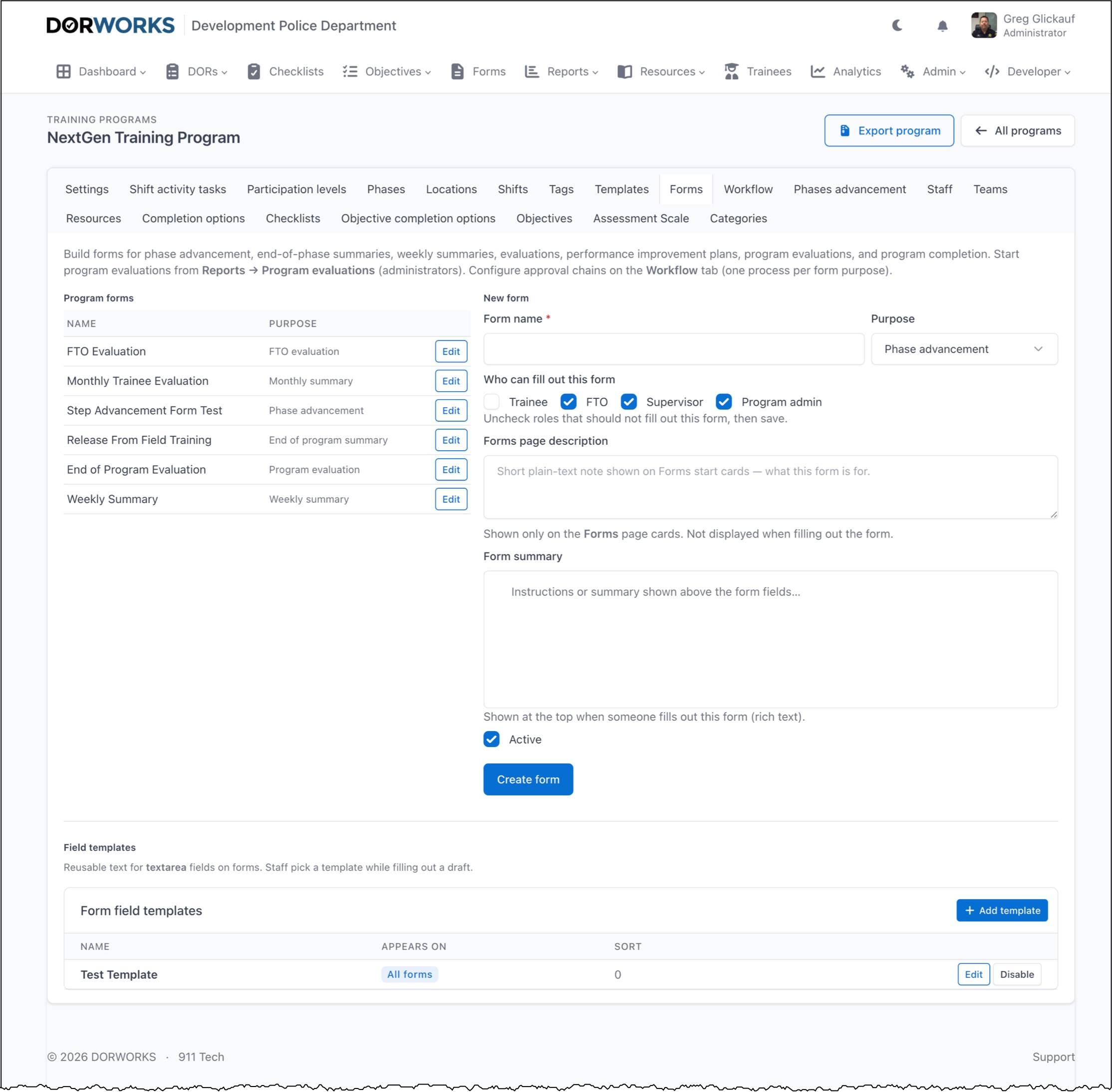
Each form is customizable — who may use it, questions asked, and answer options. Most agencies adapt existing paper processes into forms.
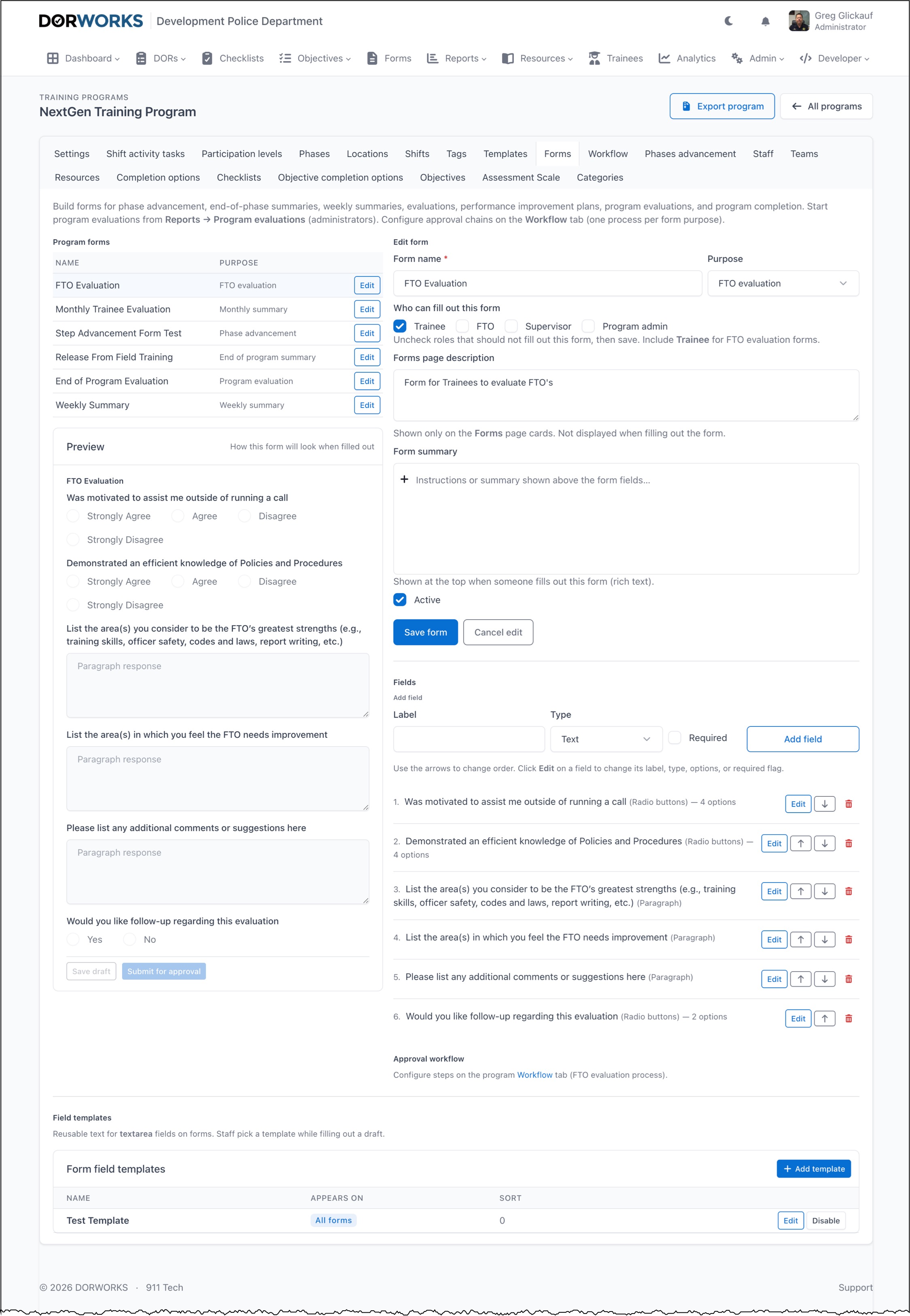
Forms may use template content unique to that form; manage form-specific templates at the bottom of the Forms tab.
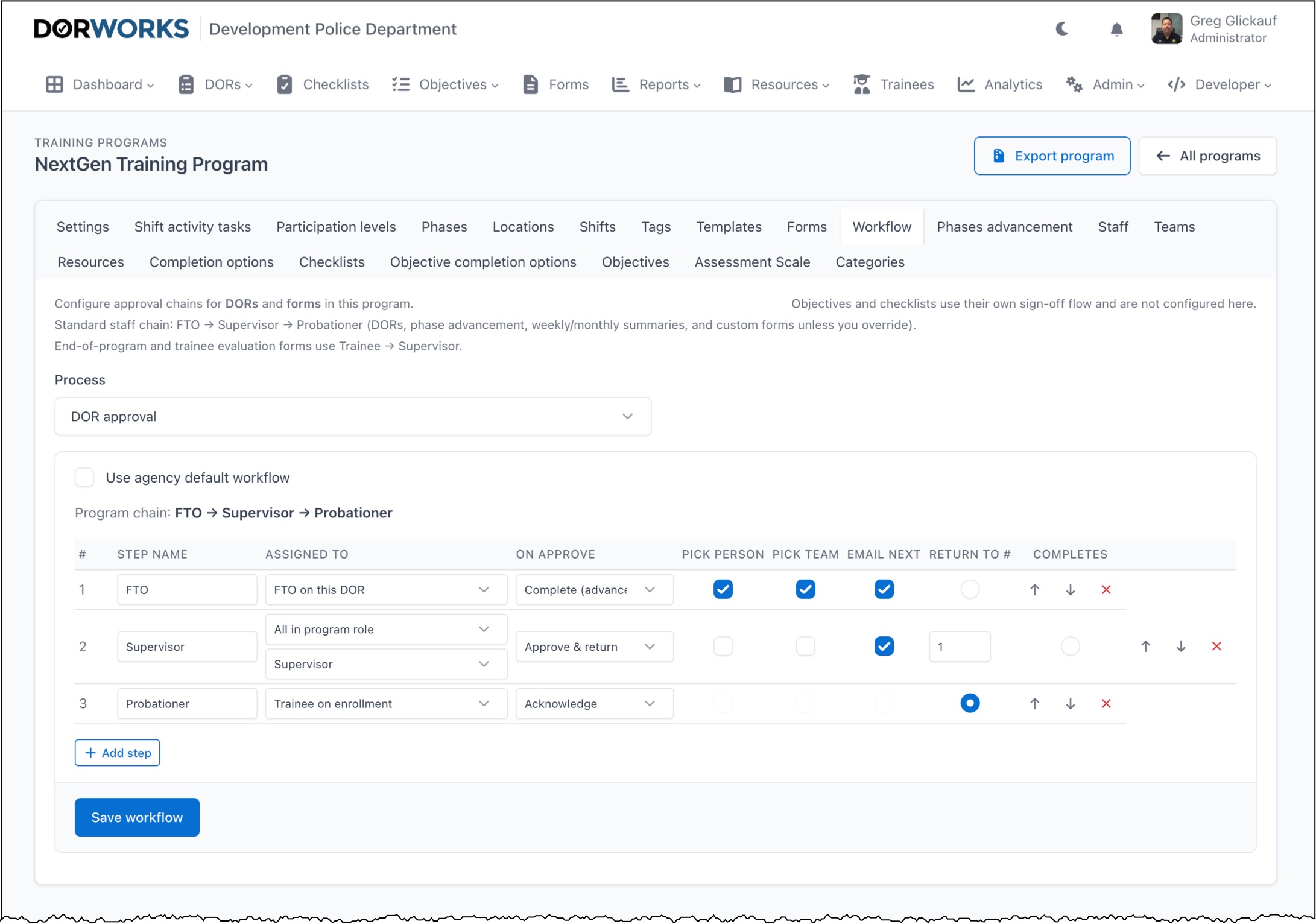
Workflow tab
Workflow determines the approval flow for processes in DORWORKS. Workflows exist for:
- DORs
- Custom forms
- Phase advancements
- End of phases
- Weekly summaries
- Monthly summaries
- End of program
- Performance improvement plan
- Employee FTO evaluation
- Program evaluation
Modify workflows to match your agency's approval chain.
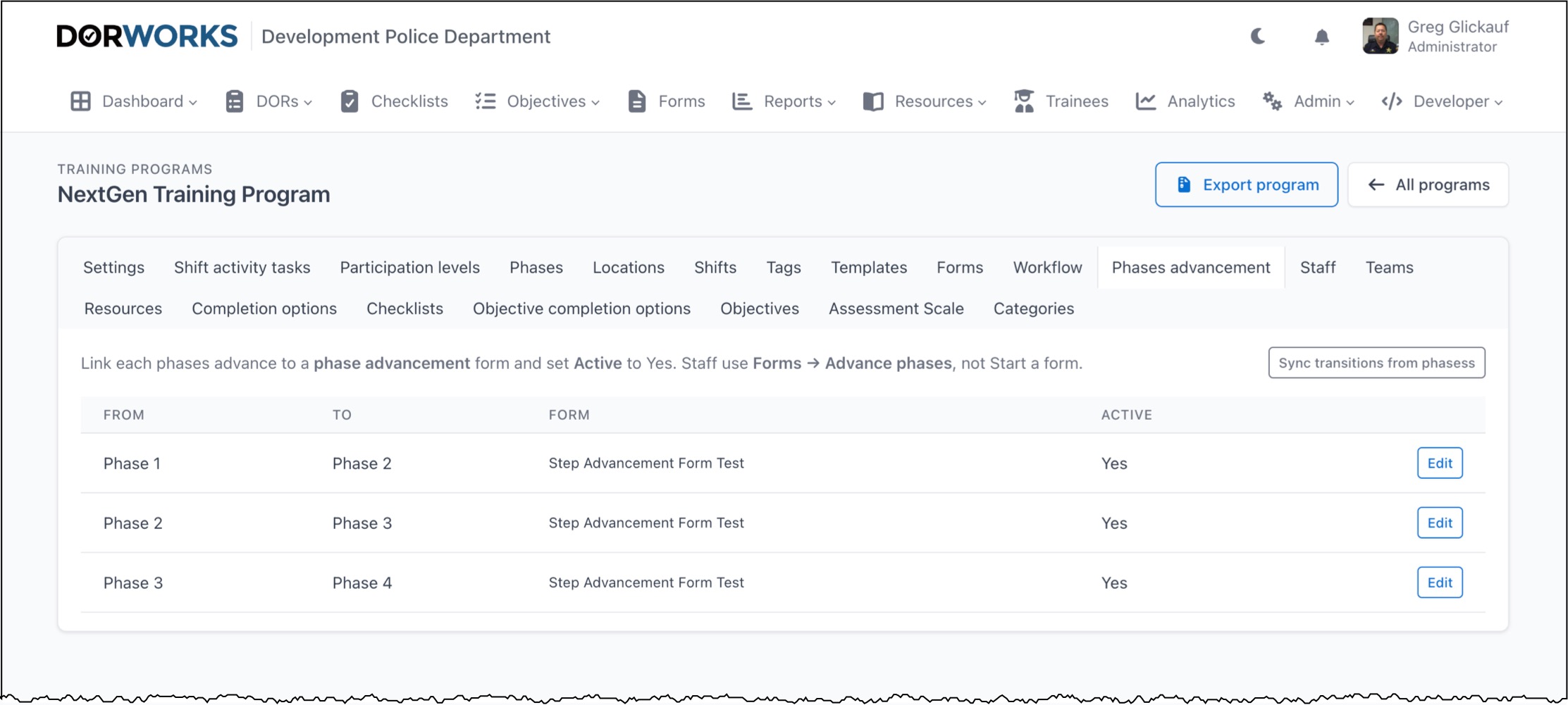
Phase advancement tab
Links transitions between phases to the phase advancement form.
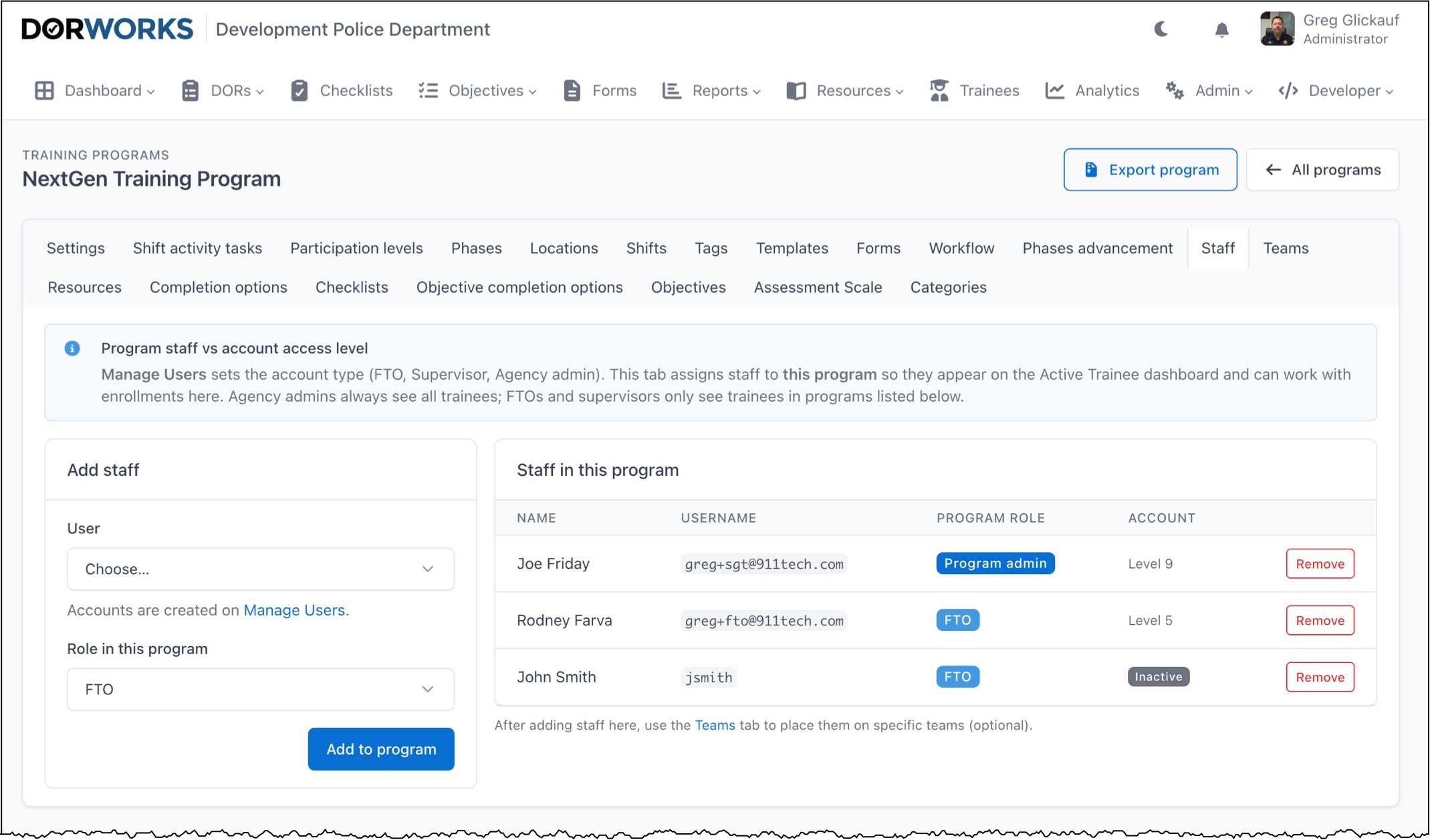
Staff tab
Assign employees to roles in this program outside their default agency role. Useful when, for example, a supervisor is also a trainee in a supervisor training program while remaining a supervisor in other programs.
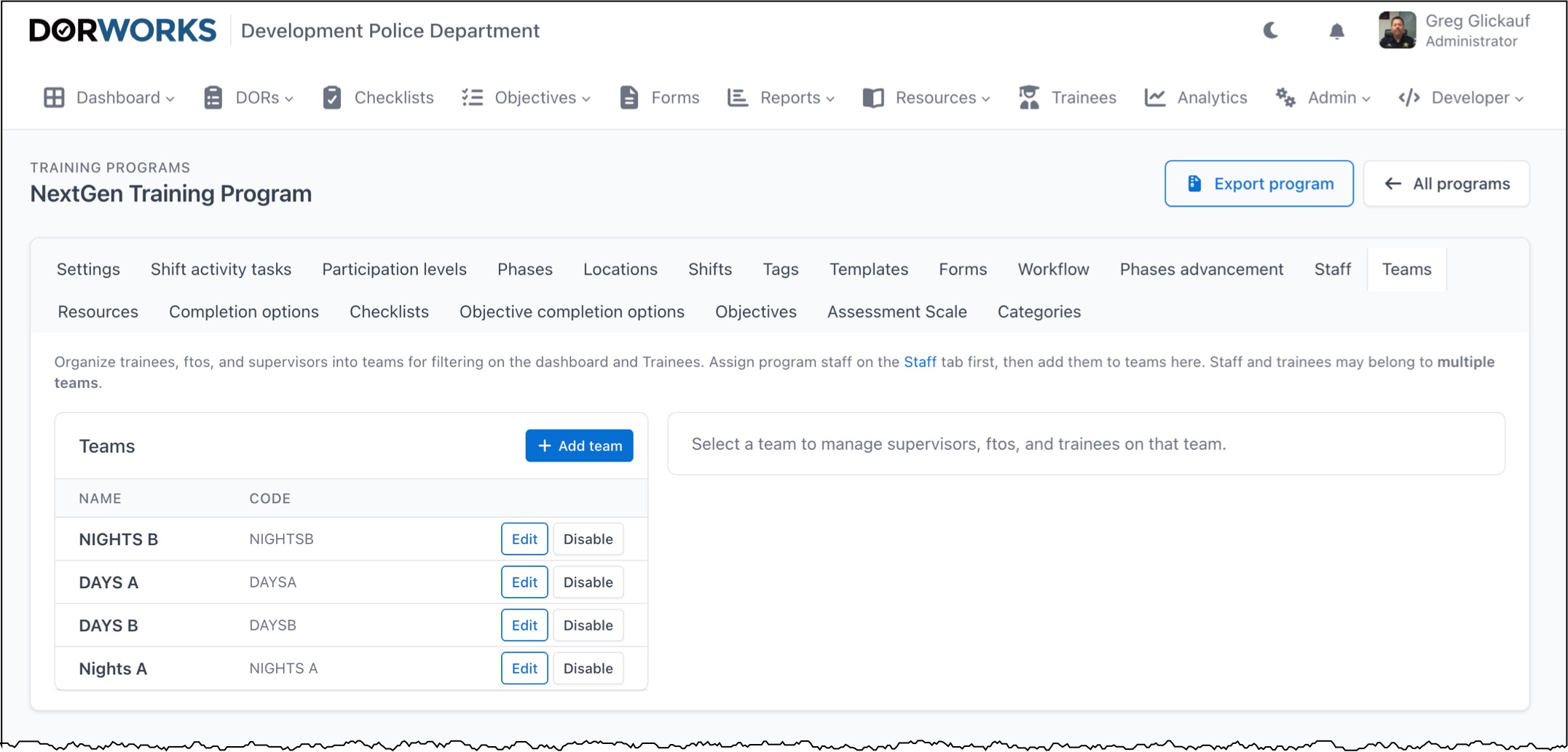
Teams tab
If your agency uses teams (such as 12-hour shift teams), personnel can select an entire team during workflow instead of a specific person.
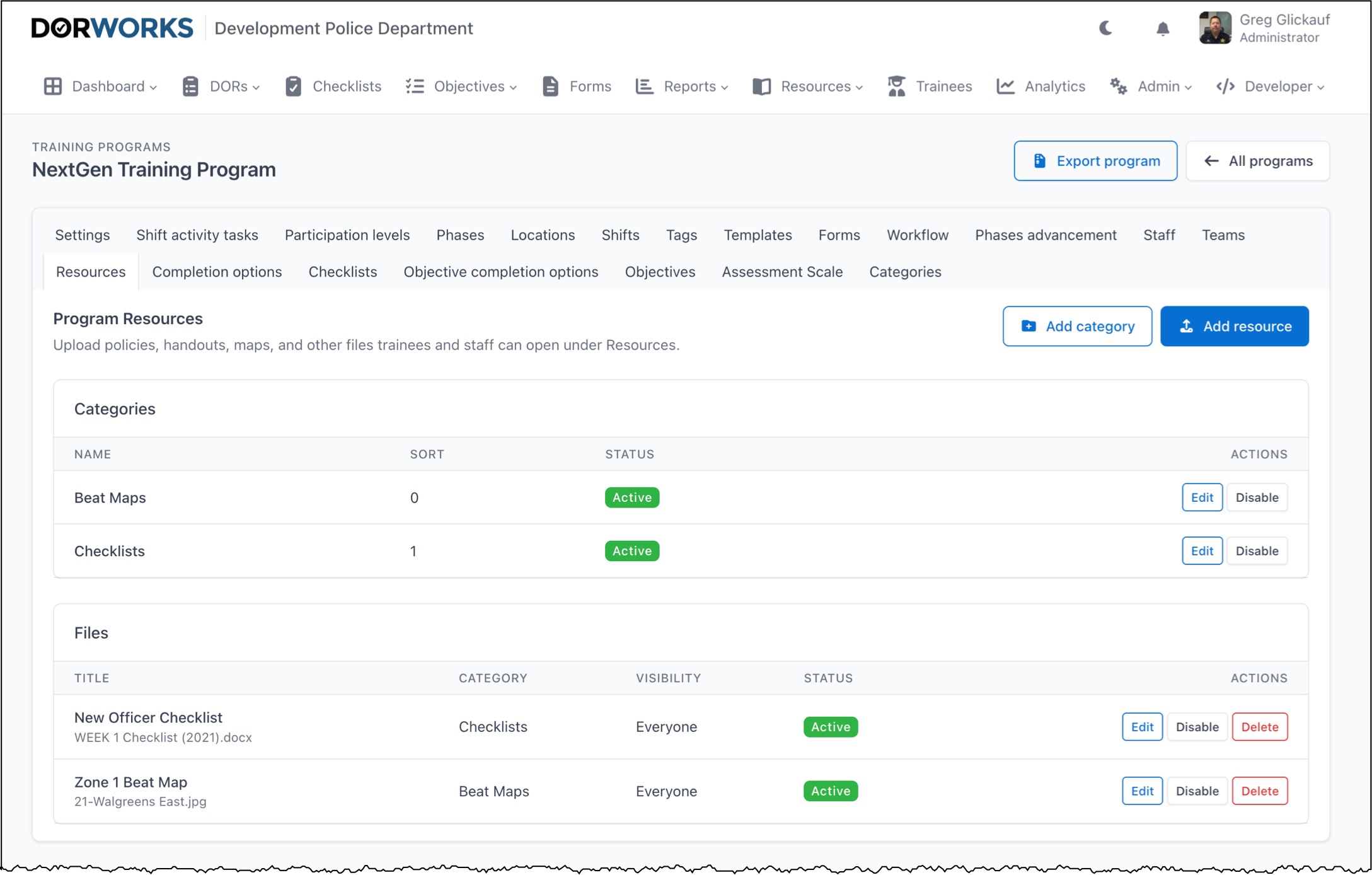
Resources tab
Manage documents available under Resources in the app.
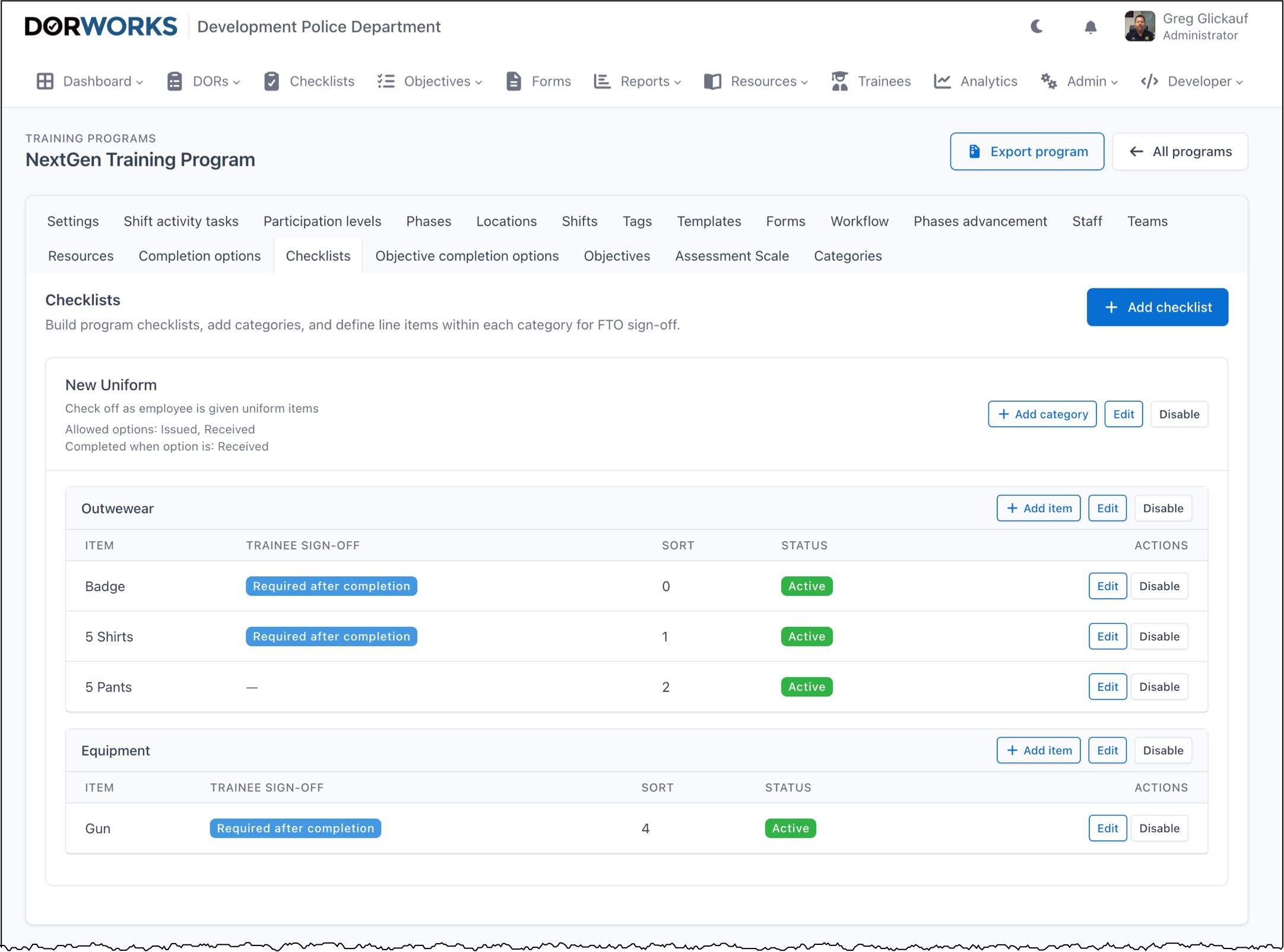
Checklists tab
Create checklists employees complete during training.
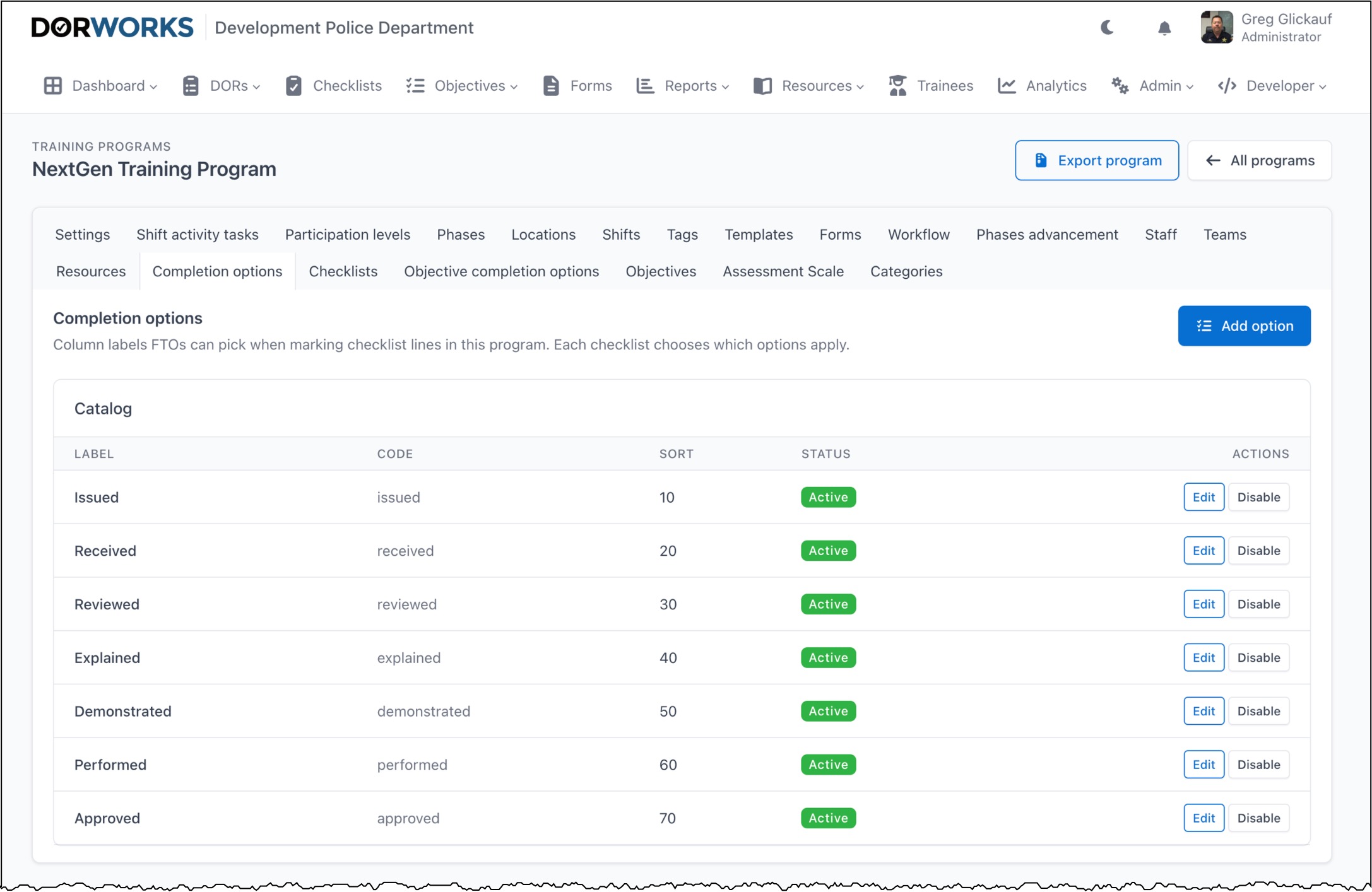
Checklist completion options tab
Define the options available while working through checklists.
Objectives tab
Objectives formally document proficiency, review, and training on specific topics (sometimes called tasks, task sheets, or policies).
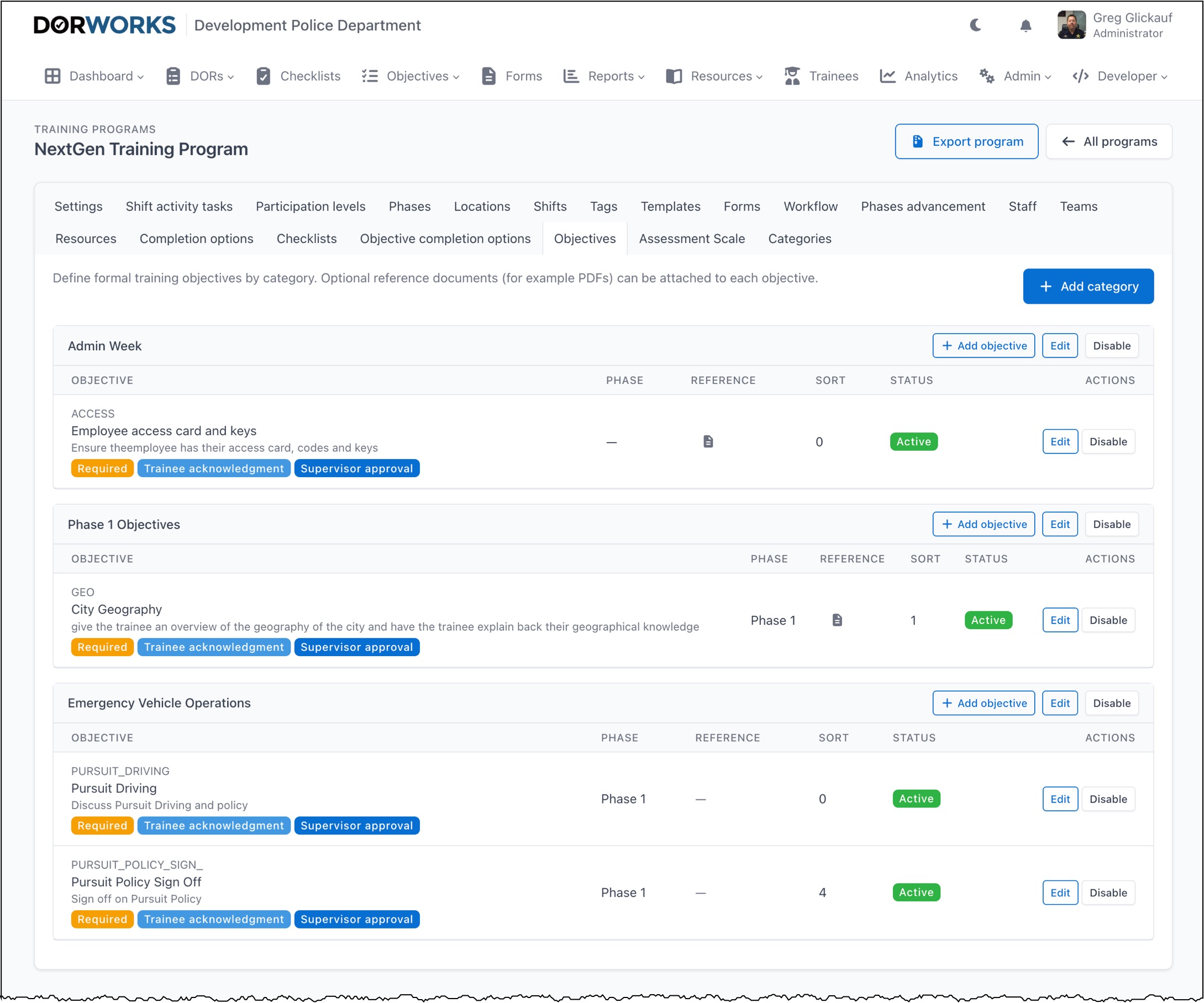
Objectives may require approvals; approval flow is configured per objective and does not use the standard workflow tab.
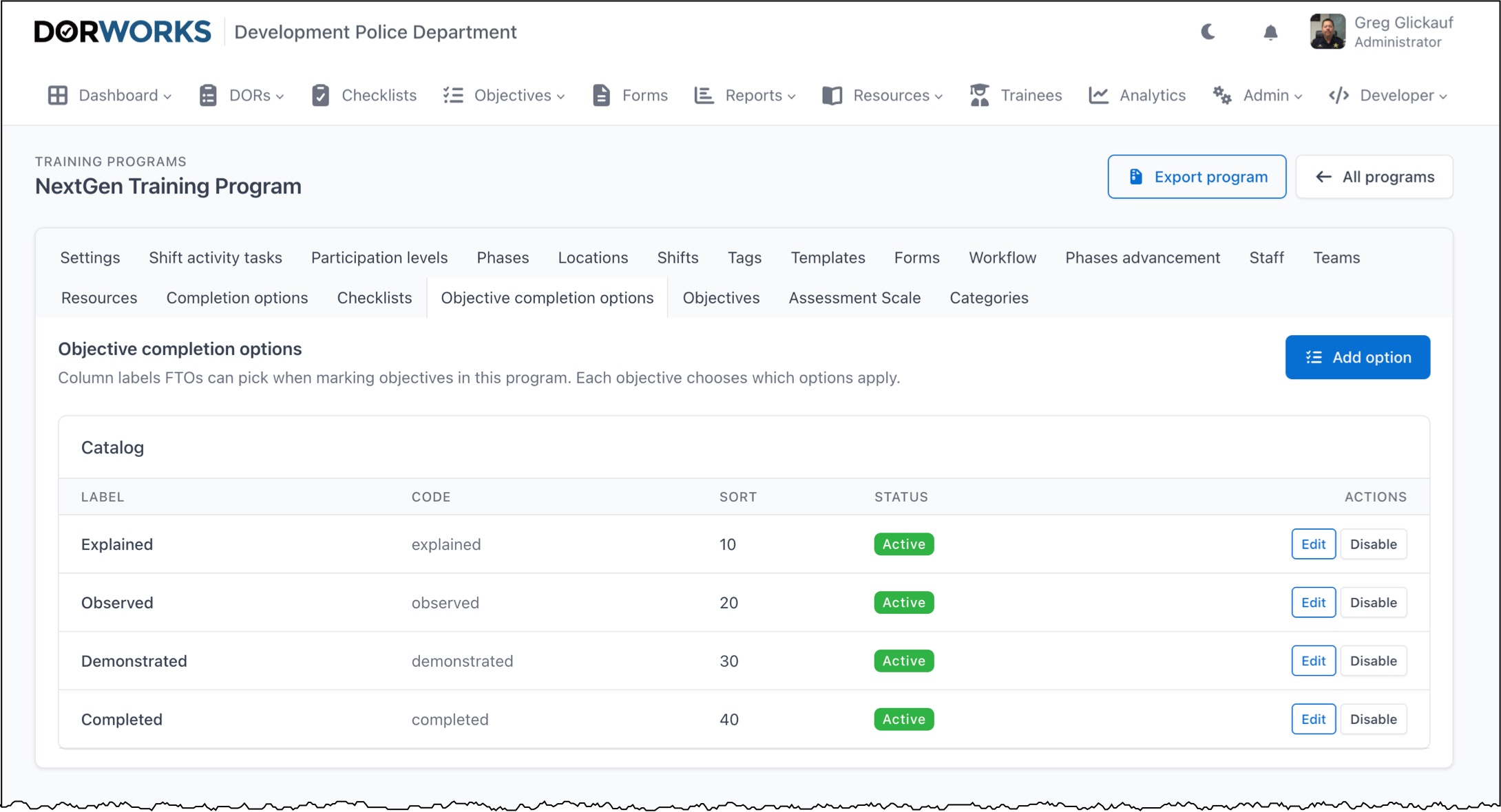
Objective completion options tab
Define the options available while working through objectives.
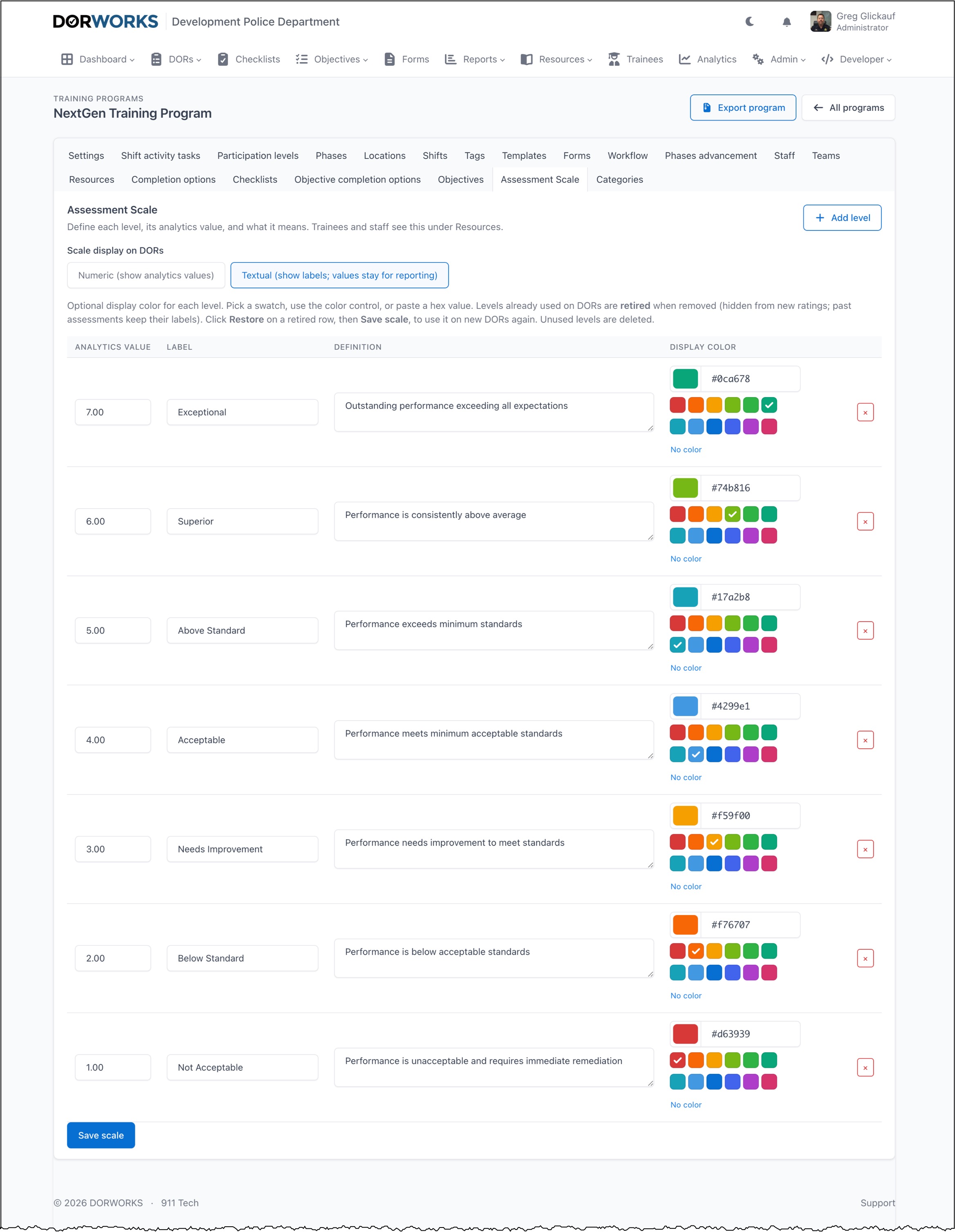
Rating (assessment) scale tab
The assessment scale is set per program and supports many field training models (San Jose, Nextgen, Reno, coaching, and others). Scales may be textual or numerical and are fully customizable.
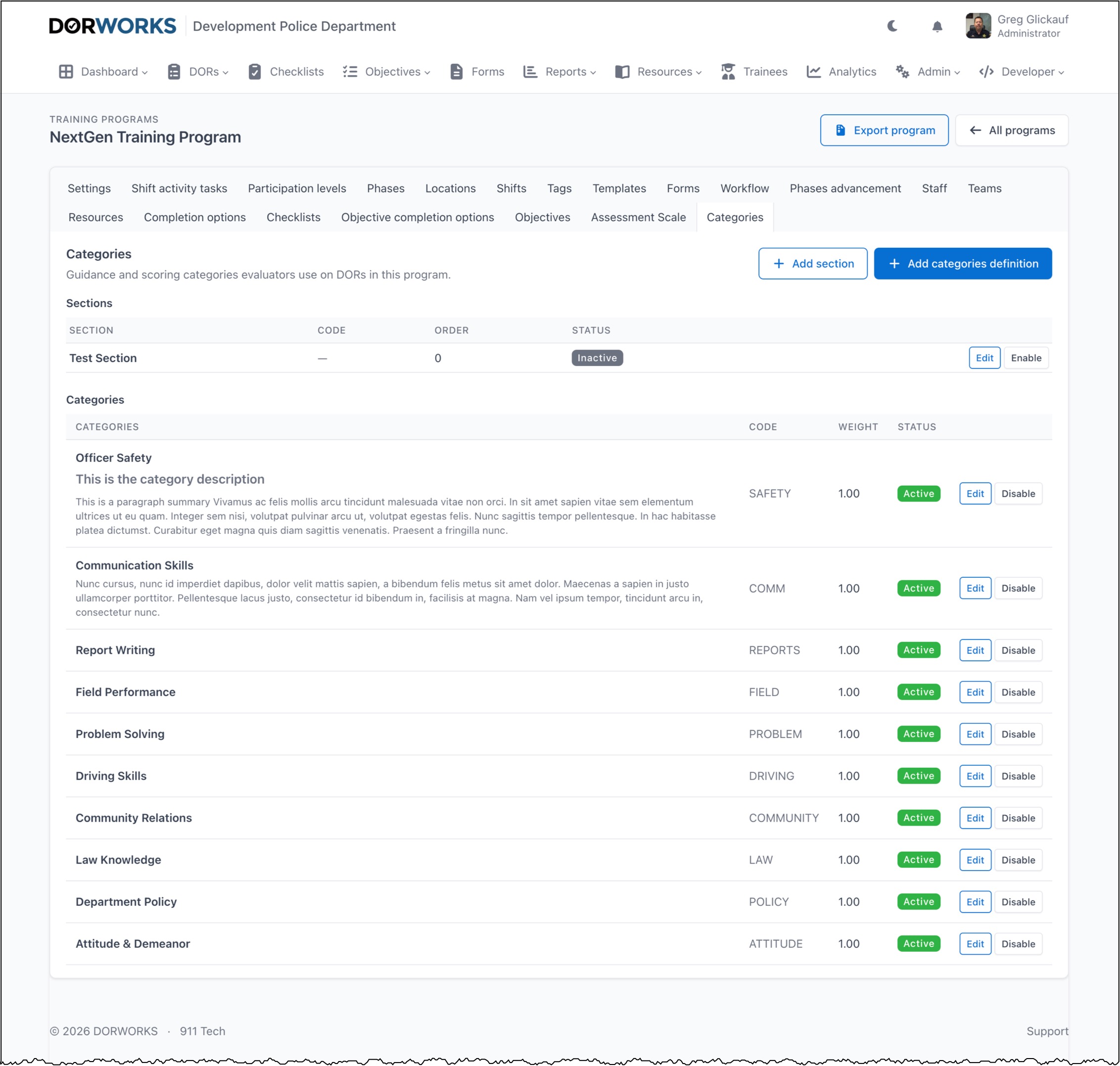
Rating categories tab
Categories are the topics and definitions used to evaluate personnel. Most agencies use a single list; DORWORKS also supports section headings that group categories when your model requires it.
3. Add staff and trainees
Complete staff setup before enrolling real trainees.
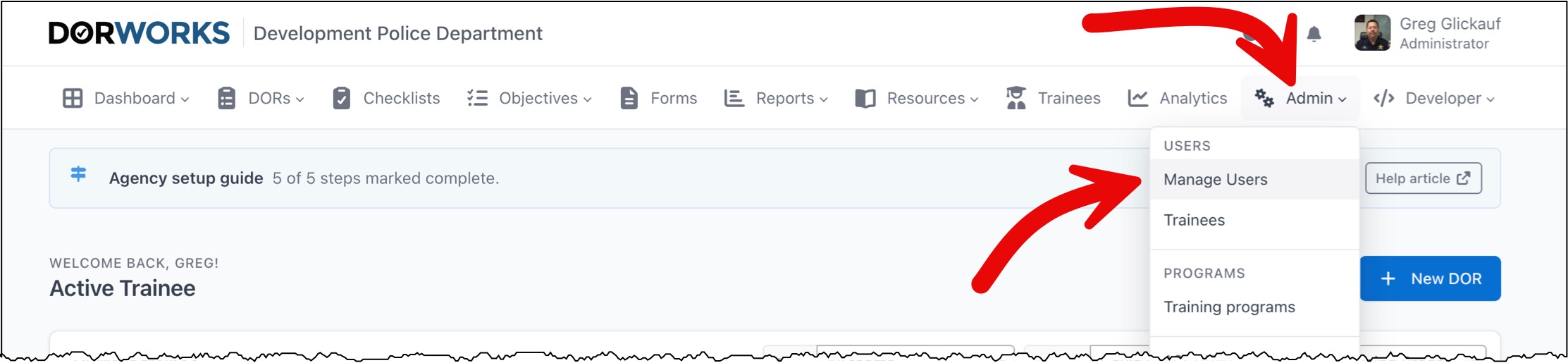
The list of users in your system
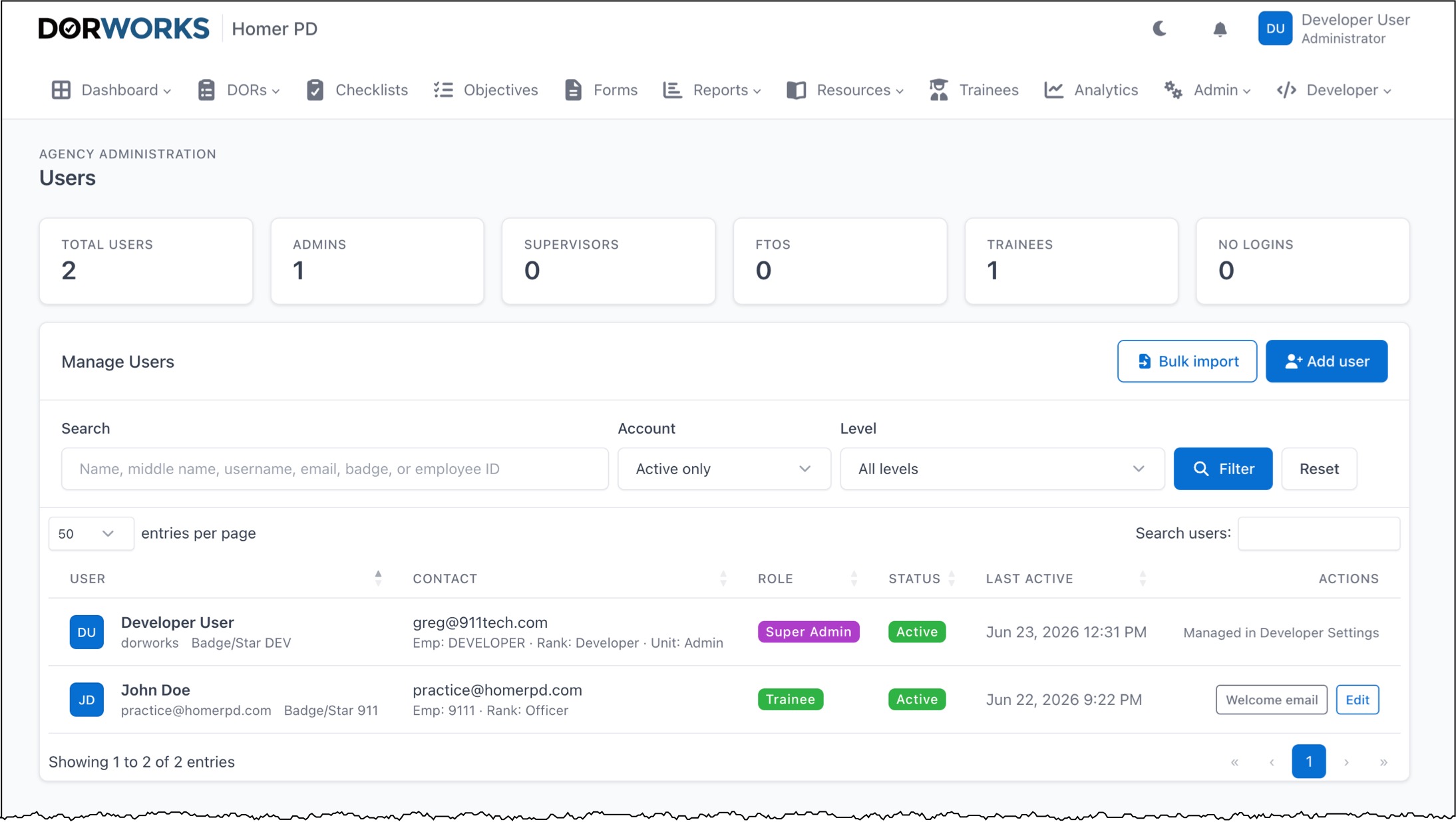
Go to Admin → Manage Users → Add user.
- Create FTO, supervisor, and admin accounts.
- Use Welcome email on each row so staff can set their password.
- Assign program roles on the user record when prompted.
Try John Doe (free practice trainee)
Each agency includes John Doe, a sandbox trainee (practice@your-agency-domain ).
- Go to Trainees and enroll John in your program if needed (no credit charge).
- Run a practice DOR or checklist to learn the workflow before live data.
Enroll real trainees
Go to Trainees → Enroll trainee.
- Each enrollment uses one trainee credit (pay-as-you-go agencies).
- Enroll when you are ready for official training records.
Billing (optional)
Go to Admin → Billing.
- First program: included
- Additional programs: one-time slot purchase
- Trainee credits: purchased in bulk; one credit is used at enrollment
Promo codes apply to credit purchases on the Billing page, not at enrollment. Agencies on an annual contract bill through DORWORKS support instead of self-serve checkout; enrollments do not deduct credits.
Hiding the in-app guide
On Dashboard or Training programs, open Setup guide and choose We're done — hide guide for our agency.
This hides the guide for all agency admins. This support article remains available here and from Support in the app.
DORWORKS support can reactivate the in-app guide for your agency if needed.
Agency branding
To change the agency name shown in the app or add your patch (badge/logo) next to the name, go to Admin → Agency branding.
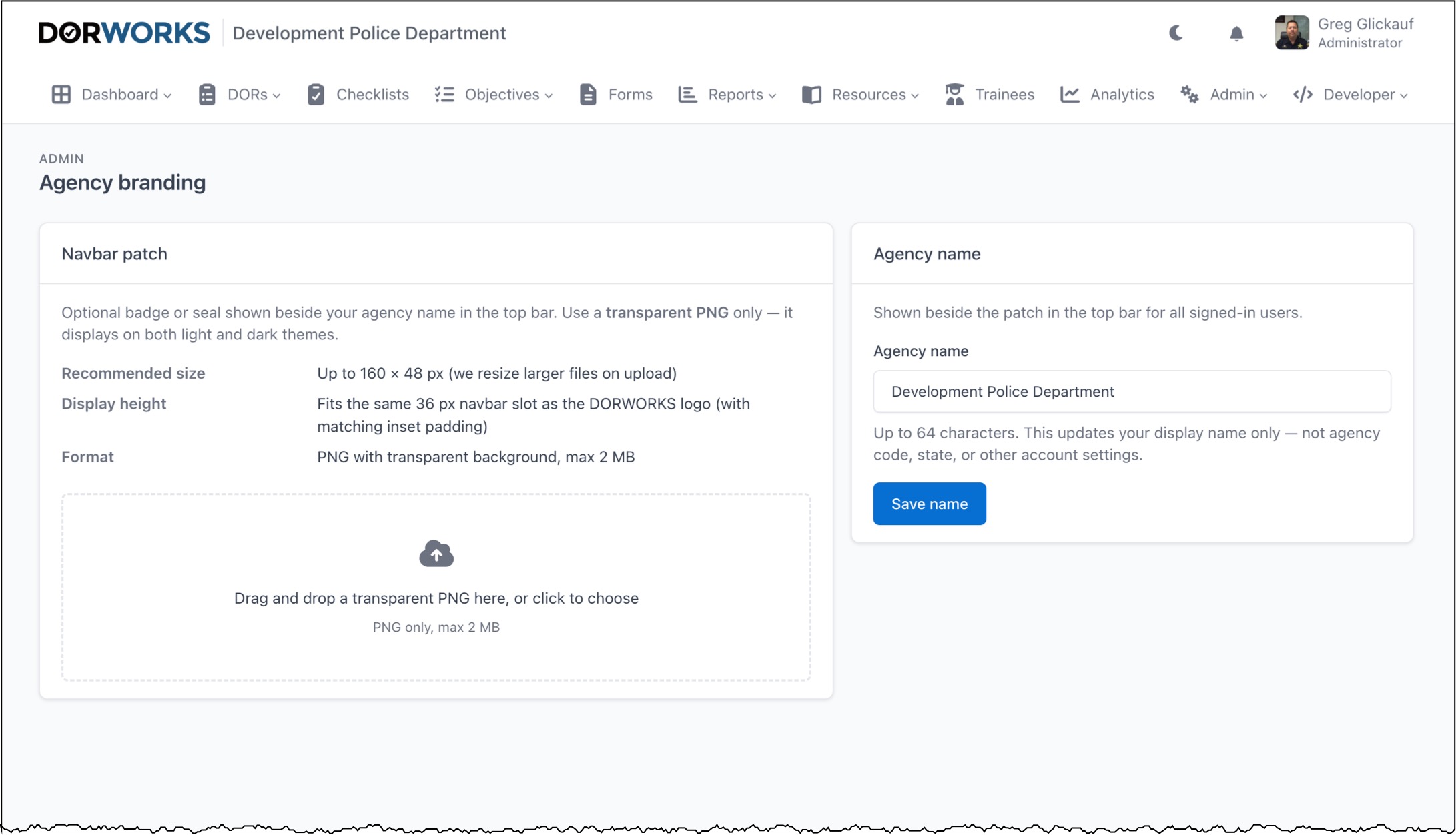
- Agency name — shown in the top navigation and on PDF exports
- Agency patch — PNG logo with transparent background (max 2 MB)
Need help?
- In-app: Support page or the support beacon (lower-right on Dashboard)
- Email: support@dorworks.com
Include your agency name and a short description of what you are trying to do.